
What Is Screen Tearing? Causes and 8 Easy Fixes
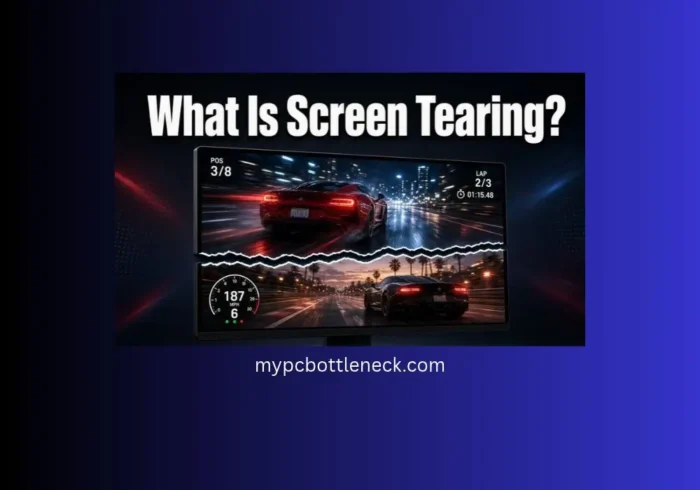
What is screen tearing? Screen tearing is a display glitch where your monitor shows parts of two different frames at the same time. It looks like a horizontal line cutting across the picture. It happens when your graphics card (GPU) and your monitor are out of sync, and you can usually fix it in a few minutes with a settings change.
Have you ever turned the camera in a game and seen the top half of the screen jump ahead of the bottom half? That is tearing. It shows up in games, videos and even web pages. It looks bad, but it is harmless, and the fixes are simple. This guide covers what causes it, how to tell it apart from other screen problems, and how to stop it.
Table of Contents
Quick Answer: Which Fix Should You Use?
Quick Answer: Which Screen Tearing Fix Should You Use?
Find your situation below and start with the fix next to it.
What Is Screen Tearing? (In Simple Words)
Your monitor does not draw a whole picture at once. It draws line by line, from top to bottom. If your GPU swaps in a new frame while the monitor is halfway down the screen, the lines above the swap show the old frame and the lines below show the new one. Because the two pieces do not match, you see a break.
Think of it like a torn photo taped back together a little crooked. Nothing is broken. The timing is just off.
In What Is Screen Tearing?: “Seeing flicker instead of tearing? See why your monitor is flickering.
What Does Screen Tearing Look Like?
- A thin horizontal line that flickers or moves across the screen
- The top of the image looks shifted compared to the bottom
- A car, character or wall that looks cut in two during fast movement
- Worse tearing when you turn the camera quickly or pan fast in a video
If you see a visible line across the picture, it is tearing. It is not a sign that your GPU or monitor is failing.
Why Does Screen Tearing Happen?
You need to know two terms:
- Frame rate (FPS): how many pictures your GPU makes each second.
- Refresh rate (Hz): how many times your monitor updates the picture each second. A 60Hz monitor refreshes 60 times per second. Our guide on what is refresh rate explains this in more detail.
When the two numbers do not line up, the monitor can start drawing a new frame before it finishes the old one. That is a tear.
Picture a printer and a reader. The printer (your GPU) keeps pushing out new pages. The reader (your monitor) is still halfway down the old page. If a new page is slipped in at that moment, the reader sees half of one page and half of another.
Common Causes of Screen Tearing
- FPS and refresh rate do not match. This is the number one cause.
- V-Sync is off. V-Sync makes the GPU wait for the monitor.
- Your monitor runs below its real speed. Many 144Hz monitors sit at 60Hz in Windows by mistake.
- Unstable FPS. Big jumps up and down make tearing easier to see. A game with poor frame time can feel rough even when the average FPS looks fine.
- Old graphics drivers. They can handle frame timing badly.
- The wrong cable or port. An older cable may not carry your full refresh rate.
- Game display mode. Some games tear more in windowed mode.
- Browser or video player settings. Hardware acceleration problems can cause tearing in videos.
Does Screen Tearing Only Happen at High FPS?
No. It is most common when your FPS is higher than your refresh rate, such as 120 FPS on a 60Hz screen. But it can also happen when your FPS drops below your refresh rate and bounces around. A higher refresh rate hides tearing better, but it does not remove it.
If your FPS is low or unstable, the cause may be your hardware. Check whether your parts are balanced with our free PC bottleneck calculator, or read how a GPU bottleneck holds back your frame rate.
Screen Tearing vs Stuttering vs Input Lag vs Ghosting
People mix these up all the time:
| Problem | What you see | Main cause |
|---|---|---|
| Screen tearing | A horizontal split in the picture | GPU and monitor out of sync |
| Stuttering | Motion looks jerky or skips | Uneven frame delivery or low FPS |
| Input lag | You click, and the action reacts late | Delay between input and display. See what is input lag |
| Ghosting | Blurry trails behind moving objects | Slow monitor response time |
Tearing changes how the image looks. Stuttering changes how smooth it feels. If your game feels choppy even though the FPS number is high, check your 1% low FPS, since that shows the rough moments an average hides.
Is Screen Tearing Harmful?
No. It will not damage your monitor, GPU or eyes. It is only a visual problem. It can still break your focus in games, so it is worth fixing.
How to Fix Screen Tearing (8 Easy Fixes)
Start at the top. Most people solve it with the first two or three.
1. Turn On V-Sync
V-Sync makes your GPU wait until the monitor is ready for the next frame. This stops tearing in most cases.
- Open your game’s video or graphics settings.
- Find V-Sync (also called Vertical Sync).
- Turn it on.
The trade-off is that V-Sync can add a little input lag. For casual gaming and videos, that is usually fine. For a full breakdown, read our V-Sync guide.
2. Use G-Sync or FreeSync
These are adaptive sync technologies. Instead of the monitor staying at one fixed speed, it changes its refresh rate to match your GPU in real time. That removes tearing without the extra lag of classic V-Sync.
- G-Sync works with NVIDIA graphics cards. NVIDIA says it matches the monitor’s refresh rate to the GPU frame rate and needs a G-Sync or G-Sync Compatible display, as explained in the NVIDIA Control Panel help page.
- FreeSync works with AMD graphics cards. AMD notes that you need a FreeSync-capable display, a compatible GPU and the latest driver, and that you should switch FreeSync on in the display’s own menu. You can read the details on the AMD FreeSync page.
Not sure which one fits you? See our G-Sync guide and FreeSync guide . If you are shopping for a new screen, check our list of the best gaming monitors.
To turn it on, enable the adaptive sync option in the NVIDIA Control Panel or AMD Software. Also check your monitor’s on-screen menu in case it has its own switch.
3. Cap Your Frame Rate
If your FPS goes far above your refresh rate, limit it. On a 60Hz monitor, cap at 60 FPS. On a 144Hz monitor with G-Sync or FreeSync, cap a few frames below, like 141. You can set the cap in the game, in your GPU control panel, or with a tool like RivaTuner. Our list of free PC benchmark software can help you watch your FPS while you test.
4. Set the Correct Refresh Rate in Windows
Sometimes your monitor is running slower than it should, and you would never know.
- Right-click the desktop and choose Display settings.
- Click Advanced display.
- Pick the highest refresh rate listed for your monitor.
5. Update Your Graphics Drivers
New drivers often fix timing bugs. Download the latest from NVIDIA, AMD or Intel, or use their apps. Restart your PC afterward and test again.
6. Try a Different Display Mode
Switch between Fullscreen, Borderless Windowed and Windowed. Fullscreen usually gives the cleanest result. Some games tear more in windowed mode.
7. Check Your Cable and Port
Use a DisplayPort cable, or a modern HDMI cable that supports your refresh rate. Plug it into the graphics card, not the motherboard. This is a very common mistake, and it can make your PC ignore your GPU entirely.
8. Lower Demanding Graphics Settings
If your GPU cannot hold a steady frame rate, turn down heavy settings like ray tracing, shadows and anti-aliasing. A steady FPS makes tearing less noticeable and helps with stutter too.
How to Fix Screen Tearing in Videos and Browsers
If tearing only shows up while you watch videos:
- Turn hardware acceleration on or off in your browser settings and test both.
- Update your browser.
- Try another player such as VLC.
- Update your graphics driver.
This happens because most videos run at 24 or 30 frames per second while your screen refreshes at 60Hz or more. If the player or browser does not handle that well, fast scenes can tear.
Can Screen Tearing Happen on TVs, Consoles and Laptops?
TVs and consoles: Yes. It is more common with older TVs or games that do not use V-Sync. If your TV and console support VRR (variable refresh rate), turn it on in both settings menus.
Laptops: Laptops often switch between integrated and dedicated graphics, which can cause timing problems. Update both drivers, make sure the game uses your dedicated GPU, and enable V-Sync or adaptive sync if your laptop supports it.
How to Prevent Screen Tearing in the Future
- Buy a monitor with a high refresh rate and adaptive sync support.
- Keep your graphics drivers updated.
- Use the right cable and port.
- Cap your FPS to match your screen.
- Keep your game settings balanced so your FPS stays steady. If your parts are not matched well, read what is bottlenecking my PC.
Frequently Asked Questions About Screen Tearing
Why do I still get screen tearing with V-Sync on?
The game may not be applying V-Sync properly, or your GPU control panel may be overriding it. Try setting V-Sync in the GPU control panel instead of the game, switch to fullscreen, and update your drivers.
Does a 144Hz monitor still have screen tearing?
Yes. A higher refresh rate makes tearing less noticeable, but it does not remove it. You still need adaptive sync, V-Sync or an FPS cap for a clean picture.
Should I turn V-Sync on or off?
Turn it on if you see tearing and do not mind a small amount of delay. Turn it off and use G-Sync or FreeSync if you play fast competitive games and your monitor supports it.
Does V-Sync cause input lag?
It can, because it holds finished frames until the monitor is ready. Adaptive sync and a frame cap just under your refresh rate are the usual ways to keep that delay low.
Is screen tearing caused by the GPU or the monitor?
Neither one is broken. The two are working at different speeds, and the fix is to sync them.
Does screen tearing mean my GPU is dying?
Usually no. It is normally a settings or sync issue. If you also see crashes, black screens or odd artifacts, check your GPU temperatures and health. Our guide on how to check GPU health shows how.
Why do I get tearing in only one game?
That game’s settings are the likely cause. Check its display mode, V-Sync option and FPS limit, and look for a patch.
Does screen tearing happen on YouTube or Netflix?
It can, but it is rare. Browser hardware acceleration, old drivers or a bad display setting are the usual causes.
Final Thoughts
So, what is screen tearing? It is a timing problem between your graphics card and your monitor, and it is not dangerous. Start with V-Sync or an FPS cap. Use G-Sync or FreeSync if your monitor supports it. Then set the right refresh rate, update your drivers and check your cable. Most people get a clean picture within minutes.
Still seeing tears? Tell us your monitor, GPU and game in the comments and we will help you find the right setting.


