
CPU Temperature Range – Safe, Normal and Danger Zones Explained (2026)
CPU Temperature Range. While building this site I went through hundreds of forum threads looking for the topics that genuinely worried people the most. Not which GPU to buy. Not how to build a PC. The question that appeared more than almost anything else, written with more visible panic than any other post, was this one:
“My CPU temperature is hitting 90 degrees while gaming. Is my PC going to die?”
I found this exact fear on Tom’s Hardware, Reddit, PC Gamer forums, Quora and Steam discussions. Hundreds of different people, all scared they had broken something or were about to.
One person on Tom’s Hardware wrote: “I have a Ryzen 7900X and I noticed that when I start playing a heavy game, HWMonitor shows temperatures between 85C and 96C. I don’t know if it’s normal. I’m pretty dumb with software.”
A user on Tom’s Guide posted: “My CPU reaches 95 to 100 degrees while gaming. I’m becoming really stressed at this point.”
And on a Steam forum, someone wrote: “60 to 70 is WAY too hot for a CPU and you might be destroying it RIGHT NOW.” Someone else in the same thread replied: “That is complete false information. The maximum temperature for AMD Ryzen CPUs is 95C. Intel CPUs is 105C. Anything below that is perfectly fine.”
Two people. Both sounding confident. Completely contradicting each other.
This is exactly the problem. The internet is full of conflicting advice about CPU temperatures. Someone reads a 2015 forum post saying anything above 70 degrees is dangerous. They check their 2026 CPU running at 85 degrees and panic. They buy a 360mm AIO they did not need. Their temperatures barely change because 85 degrees was completely normal all along.
The reason I built mypcbottleneck.com is because situations like this happen thousands of times every day. Good hardware, confusing information, no clear answer anywhere.
So today I am going to give you that clear answer. What is safe, what is normal, what is too hot, and exactly what to do about it. In the simplest words I know.
Let us start.
Why CPU Temperature Matters
Your CPU, the processor inside your PC, is like a tiny brain handling thousands of calculations every second. All that thinking creates heat. The harder it works, the hotter it gets.
Think of it like a person running a race. A gentle jog creates a little sweat. A full sprint creates a lot. Your CPU does the same thing, generating more heat the harder it works.
Here is why the temperature number matters so much for your gaming performance.
When a CPU gets too hot, two things happen:
The first is called thermal throttling. The CPU automatically slows itself down to cool off. This is its self-protection system. When it kicks in, your game starts dropping frames, your FPS becomes unstable, and everything feels choppy and inconsistent. Nothing is broken. Your hardware is fine. But the heat is forcing your CPU to work at a fraction of its speed.
The second is emergency shutdown. If temperatures climb dangerously high and throttling is not enough, your PC will switch itself off completely to prevent permanent damage. This is rare with modern systems but it absolutely happens.
So CPU temperature is not just a number to glance at and ignore. It directly affects your gaming performance, your PC’s stability, and the long-term health of your hardware.
Now. What number is safe? What is concerning? What means you need to act right now?
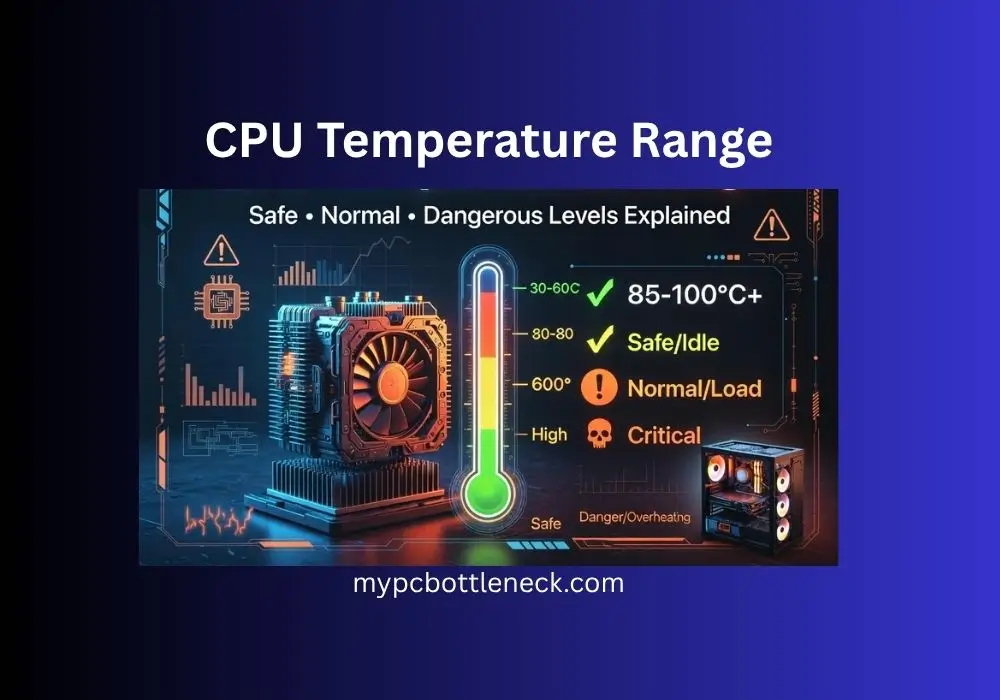
The CPU Temperature Chart for 2026
Here is every temperature zone in plain English:
| Temperature | Zone | What It Means |
|---|---|---|
| 30 to 45°C | Perfect Idle | PC is on but not doing much. Completely normal. |
| 45 to 65°C | Light Use | Browsing, YouTube, light tasks. Healthy. |
| 65 to 80°C | Normal Gaming | Where most CPUs live during gaming. Do not panic. |
| 80 to 90°C | Warm. Watch It. | Getting warm. Check your cooler. Not dangerous yet. |
| 90 to 95°C | Hot. Act Soon. | May be fine or may be too hot depending on your CPU. Read below. |
| 95 to 100°C | Danger Zone | Thermal throttling almost certain. FPS drops happening. Fix this now. |
| 100°C and above | Critical | Your PC will shut itself off. Something is seriously wrong. |
Intel vs AMD: Why the Confusion Exists
This is the part that causes almost all of the panic and contradictions you find online. The answer to “is 90 degrees too hot” is completely different depending on which CPU you have.
Modern CPUs from the last 3 to 4 years were designed very differently from older ones. Here is what you actually need to know for 2026.
AMD Ryzen 7000 and 9000 Series (Zen 4 and Zen 5)
AMD openly states that Ryzen 7000 series processors are designed to target 95°C under heavy loads. This is not a warning. It is the intended behavior.
On Tom’s Hardware, an expert responding to a worried Ryzen 7900X owner explained it clearly: “At 95 degrees it is not running hot. It will intentionally go to this temperature as much as possible under load because the power management system knows this is the ideal way to squeeze the most performance out of the chip without damaging it.”
The Tjmax (maximum safe temperature) for Ryzen 7000 series including the 9800X3D and 9950X3D is 95°C. If you have one of these chips hitting 90 to 95°C during gaming, that is your CPU doing exactly what AMD engineered it to do.
Intel 12th, 13th and 14th Generation
Intel 12th through 14th Gen processors have a Tjmax of 100°C. These chips are designed to boost toward that limit and use every degree of available thermal headroom to maximize performance.
One important note for 13th and 14th Gen owners. Intel acknowledged a microcode and power management issue in 2024 affecting high-end 13th and 14th Gen desktop CPUs. If you own an i9-13900K or i9-14900K, make sure your motherboard BIOS is fully updated with Intel’s latest microcode patch. Running these chips at sustained 100°C with the pre-patch microcode was a contributing factor in degraded CPUs for some users.
Intel Core Ultra 15th Generation (Arrow Lake)
The newest Intel Core Ultra 9 285K has a Tjmax of 105°C. These are among the most thermally aggressive consumer CPUs ever manufactured.
Older CPUs: Intel 8th and 9th Gen, Ryzen 1000, 2000 and 3000 Series
For older processors the rules are stricter. These chips were not designed to run as hot as modern ones. If an older Intel Core i5 or Ryzen 5 1600 is consistently hitting 90°C during gaming, that is too hot and something needs fixing.
For older chips, aim to keep gaming temperatures below 80°C. Anything consistently above 85°C is a sign your cooling is being outpaced.
The One Rule That Applies to Every CPU
Regardless of which processor you have, this rule never changes:
If your CPU is regularly hitting its Tjmax and staying there for extended periods, your FPS will suffer. Even if the CPU is technically within its safe limits, it is thermally throttling and you are losing performance you paid for.
The goal is not just to survive. The goal is to keep temperatures low enough that your CPU never needs to slow itself down.
For most gaming setups in 2026: under 80°C during gaming is excellent. 80 to 90°C is normal for modern high-TDP chips. Consistently above 90°C means investigate your cooling regardless of which CPU you have.
How to Check Your CPU Temperature Right Now
Before fixing anything, you need to know your actual numbers. Here are the best free tools in 2026.
Option 1: Core Temp (simplest) Download from alcpu.com/CoreTemp. Shows per-core temperatures with almost no setup. Perfect for a quick check.
Option 2: HWiNFO64 (most detailed) Download from hwinfo.com. Shows every sensor on your system including per-core temperatures, power consumption, and throttling indicators. The most comprehensive free monitoring tool available.
Option 3: MSI Afterburner (in-game overlay) Download from msi.com/Landing/afterburner. Shows CPU temperature on screen while you are gaming so you can see your actual gaming temperatures without ever alt-tabbing.
How to get an accurate reading:
- Download any of the tools above
- Open it and let it run in the background
- Launch your most demanding game
- Play for at least 10 to 15 minutes in a demanding area, a busy open world, a firefight, a crowded scene
- Alt-Tab and check the maximum temperature recorded
That maximum number is your real gaming temperature. That is the one you compare against the chart above.
Real Problems from Real People
“My CPU hits 100 degrees while gaming. Is this normal? Will it damage my PC?”
This is the most common panicked question found across every forum in 2025 and 2026. The answer depends entirely on which CPU you have.
If you have a modern Intel 12th, 13th or 14th Gen CPU: technically yes, 100°C is within the Tjmax. But it also means your CPU is throttling constantly, which means your FPS is taking a hit every time it happens. You are not breaking your CPU, but you are definitely not getting the performance you paid for.
If you have an AMD Ryzen 7000 or 9000 series CPU: 95°C is the Tjmax. Hitting 100°C means you are exceeding the safe limit and your system will throttle aggressively or shut down. This needs fixing.
If you have an older CPU from before 2021: 100°C is dangerous territory. Fix this immediately.
A user on Microsoft Q&A described their situation: CPU hitting 89 to 95 degrees while gaming, with brief drops to 2.8GHz every 10 to 20 seconds. No FPS drops noticed. Their CPU had a Tjmax of 100°C and was running right at the edge, throttling just enough to stay there. The thermal paste had not been replaced in years and was likely the cause.
“My CPU is at 50 to 60 degrees just sitting on the desktop doing nothing. Is something wrong?”
High idle temperatures usually come from one of these causes: a background process quietly using CPU resources (open Task Manager and sort the CPU column by highest usage), thermal paste that has dried out and is no longer making proper contact, a cooler that is not mounted correctly, or poor case airflow trapping residual heat.
On Intel 12th and 13th Gen systems, idle temperatures can read higher than expected because the chip parks background tasks on P-cores (performance cores) rather than E-cores (efficiency cores). This is normal behavior for that architecture, not a problem.
Quick check: open Task Manager, click Performance, click CPU. Look at the usage percentage at idle. If it is above 15 to 20% with no programs open, something is running in the background stealing CPU resources.
“My laptop CPU hits 95 degrees in 5 minutes of gaming. What do I do?”
Laptop CPU temperatures are a completely different story from desktop CPUs. Laptops have tiny coolers crammed into thin chassis with almost no room for airflow. They are engineered to run hot by necessity.
A user on Tom’s Guide with an Alienware laptop and an i9-9900K reported CPU temperatures reaching 95 to 100°C while gaming in Fortnite. Investigation revealed one of the back fans was not spinning at all. Only one fan was working, so the cooling system was running at half capacity.
For laptops hitting 90°C or higher regularly: always game while plugged in because on battery most laptops deliberately throttle the CPU and GPU to save power. Use a laptop cooling pad which adds external airflow underneath the machine. Make sure the laptop is always on a hard flat surface, never on a pillow, bed, or your lap, which blocks the bottom vents completely. And check that all fans are actually spinning by putting your hand near the vents while gaming.
The 6 Causes of High CPU Temperature and How to Fix Each One
Cause 1: Dust Blocking Your CPU Cooler
This is the number one cause of high CPU temperatures across every forum and every tech support thread in existence. Dust builds up inside your PC over months and years. It clogs the cooler fins, covers the fan blades, and blocks the case vents.
When dust blocks airflow, your CPU cooler cannot do its job. The fan spins but it is pushing air through a wall of compacted fluff instead of through the heatsink fins. Temperatures climb. Throttling kicks in. Performance drops.
Tom’s Hardware is full of threads where the entire fix was simply cleaning the PC. One user’s FPS was crashing every 20 minutes. The GPU heatsink was so clogged that the card was hitting its thermal limit within 8 minutes of gaming.
How to clean your CPU cooler:
Step 1: Power off your PC completely and unplug it from the wall.
Step 2: Open your PC case. Most cases have a side panel that slides or swings open.
Step 3: Get a can of compressed air from any electronics store. Hold it upright and use short bursts. Do not spray continuously or tilt the can as this can release liquid.
Step 4: Blow air through the CPU cooler heatsink fins, through the case fans, and through any vents. Do this outdoors or over a bin because the dust cloud will be impressive.
Step 5: Use a soft dry brush or cotton swab to clean any remaining dust from fan blades that the compressed air did not dislodge.
Step 6: Close the case, plug back in, and check temperatures.
Most people see a 5 to 15°C temperature drop from cleaning alone. Do this every 3 to 6 months as basic maintenance.
Cause 2: Thermal Paste Has Dried Out
Between your CPU and its cooler sits a thin layer of thermal paste. This paste fills in the microscopic gaps between the two metal surfaces and helps heat transfer efficiently from the CPU to the cooler.
Over time, usually after 2 to 4 years, thermal paste dries out, cracks, and loses its effectiveness. When it fails, heat cannot move from the CPU to the cooler efficiently and temperatures climb significantly.
Signs your thermal paste needs replacing: your PC is 3 or more years old and temperatures have gradually gotten worse over time. Temperatures are high even after cleaning all the dust. You recently removed and reinstalled your CPU cooler without reapplying paste.
A user on Microsoft Q&A with high CPU temperatures suspected this was the cause after noticing the problem started gradually after upgrading to Windows 11, and that temps had been creeping up over the course of a year. Fresh thermal paste was the recommended first step.
How to replace thermal paste:
Step 1: Get a quality thermal paste. Arctic MX-6 or Thermal Grizzly Kryonaut are both excellent choices available for under $15.
Step 2: Remove your CPU cooler carefully. Unscrew it (usually 4 screws in a cross pattern) and lift it straight off.
Step 3: Clean the old paste off both the CPU and the bottom of the cooler using isopropyl alcohol (90% or higher) and a lint-free cloth. Be thorough. No residue should remain.
Step 4: Apply new paste. A pea-sized dot in the exact center of the CPU is sufficient. When the cooler is pressed down it will spread evenly across the surface.
Step 5: Remount the cooler, tightening screws in a cross pattern (opposite corners) to ensure even pressure.
Step 6: Boot up and check temperatures after 15 to 20 minutes of gaming.
Most people see a 10 to 20°C temperature drop after replacing old paste. This single fix has solved overheating problems that seemed impossible for many people on forums.
Cause 3: Poor Case Airflow
Your CPU cooler removes heat from the chip and dumps it into the air inside your case. But if that hot air has nowhere to go, it just sits there getting hotter and your CPU temperatures follow.
Good airflow means cool air coming in from the front or bottom of the case, flowing over components, picking up heat, and leaving through the back or top.
Bad airflow looks like: cables hanging in front of fans blocking the airflow path. No exhaust fan, only intake fans or no fans at all. All fans pointing the wrong direction. A case with no ventilation mesh, just solid panels everywhere with no way for air to escape.
How to fix case airflow:
Step 1: Check your fan directions. A fan blowing air into the case is an intake fan. A fan blowing air out of the case is an exhaust fan. The minimum setup should have at least one intake at the front and one exhaust at the rear.
Step 2: Tidy your cables. Cable management is not just about looks. Loose cables hanging over your motherboard block the airflow path and trap heat. Use the cable routing holes in your case and zip ties to keep everything clear.
Step 3: Consider adding a case fan. Most cases have mounting points for additional fans. A second exhaust fan at the top specifically helps CPU temperatures by pulling hot air (which naturally rises) out of the case.
Step 4: Check your case placement. PCs sitting inside enclosed desk cabinets with no room for hot air to dissipate will always run hot. Give your PC at least 15 to 20cm of clear space on all sides.
Cause 4: Your Stock Cooler Is Not Enough
Many CPUs, especially budget and mid-range ones, come with a stock cooler included in the box. These stock coolers are fine for light use but they struggle with modern gaming workloads, especially at 1080p where the CPU is under maximum pressure.
If you have a stock Intel or AMD cooler and your temperatures are consistently above 85°C during gaming, the cooler itself is the bottleneck. It simply cannot move heat away from the chip fast enough for extended gaming sessions.
The good news is that aftermarket coolers are not expensive and the improvement is dramatic.
Recommendations for 2026:
For budget builds under $50: the Cooler Master Hyper 212 is the classic option. It fits almost every socket and drops temperatures by 10 to 20°C compared to stock. The Thermalright Assassin X 120 R SE is another outstanding value option that performs like coolers twice its price.
For mid-range builds between $50 and $80: the Noctua NH-U12S redux is extremely quiet with excellent cooling performance.
For high-end builds needing liquid cooling between $100 and $150: the Arctic Liquid Freezer III 240 is a 240mm AIO that is quiet and powerful.
One important truth: you do NOT need a 360mm AIO for gaming unless you have an i9 or Ryzen 9 extreme chip. A good $50 to $70 air cooler handles almost every gaming CPU perfectly well.
Cause 5: Your CPU Is Bottlenecked and Working Too Hard
This is the connection almost nobody makes, and it is directly relevant to why I built mypcbottleneck.com.
When your CPU and GPU are mismatched, specifically when your GPU is significantly more powerful than your CPU, your processor has to run at 100% load constantly trying to keep up. Sustained maximum load generates maximum heat.
On Tom’s Hardware, when a user asked why their older i5 was hitting 90 to 100°C with a powerful GPU, the response was clear: the graphics card was too powerful for the CPU, and the CPU was running flat out at all times trying to keep the GPU fed with data. That sustained full-load operation was driving temperatures to the limit.
A heavily bottlenecked CPU runs hotter than one that is properly matched to its GPU. The processor is always at a full sprint trying to keep the graphics card busy.
Use our free PC Bottleneck Calculator to enter your CPU and GPU model and see instantly whether your processor is being pushed beyond its comfortable range by a mismatched graphics card. A heavily bottlenecked system not only performs worse, it also runs hotter because the CPU never gets to rest.
If you want to understand exactly what bottlenecking does to your system performance, read our complete guide on what is bottlenecking my PC.
Cause 6: Windows Power Plan Is Pushing the CPU Too Hard
When Windows is in High Performance mode or when certain BIOS settings have MultiCore Enhancement enabled, your CPU runs at maximum boost clock continuously, even during light tasks that do not need it.
This keeps temperatures elevated constantly instead of letting the CPU step down when it does not need to work hard.
A quick temperature reduction trick worth knowing: in Windows power settings, go to powercfg.cpl and try setting Maximum processor state from 100% to 99%. This single change prevents the CPU from boosting to its absolute maximum clock in situations where it does not need to, which can reduce temperatures by 5 to 10°C with almost no noticeable loss in gaming performance.
This is the same fix that helps with low GPU usage caused by power settings, which we covered in detail in our guide on why GPU usage runs low.
CPU Temperature by Use Case: What Numbers to Expect
| Situation | Normal Temperature | When to Worry |
|---|---|---|
| Desktop idle | 30 to 50°C | Above 60°C at idle |
| Web browsing and YouTube | 45 to 65°C | Above 75°C |
| Gaming at 1080p | 65 to 85°C | Consistently above 90°C |
| Gaming at 1440p and 4K | 60 to 80°C | Consistently above 90°C |
| Streaming while gaming | 75 to 90°C | Consistently hitting Tjmax |
| Video rendering | 80 to 95°C | Crashing or throttling |
| Stress test (Prime95) | 85 to 100°C | Shutting down |
One thing worth noting: 1080p gaming actually causes higher CPU temperatures than 1440p or 4K. This is because at lower resolution your GPU renders frames very quickly and demands more from the CPU to keep it supplied with work. This is also exactly why CPU bottlenecks are most common at 1080p. We explain the full relationship in our resolution bottleneck guide.
Quick Diagnosis Test: Is Your CPU Temperature a Problem?
Answer these three questions in order. Stop the moment you find your answer.
Is your CPU hitting its Tjmax regularly during gaming?
100°C for Intel 12th to 14th Gen. 95°C for AMD Ryzen 7000 and 9000 series.
Yes
Thermal throttling is happening and your FPS is being limited by heat. Go to the fixes section.
No
Continue to question 2.
Are you getting FPS drops that happen after 10 to 20 minutes of gaming and then briefly recover?
Yes
Classic throttling pattern. CPU hits its limit, slows down, cools slightly, then boosts again. Fix your cooling.
No
Continue to question 3.
Are your temperatures between 80 and 90°C but completely stable with no FPS drops?
Yes
Monitor it. Normal for modern Intel and AMD Ryzen 7000/9000. On older CPUs consider improving cooling.
No
Your temperatures are healthy. Enjoy your PC.
My GPU Temperature Is Fine But My CPU Is Hot. Is That Normal?
Yes, completely. This confuses people all the time.
Your CPU and GPU have completely separate cooling systems. The GPU has its own fans and heatsink directly on the card. The CPU has its own cooler mounted on the motherboard. They do not share cooling in any way.
It is entirely possible and very common for one to run hot while the other runs cool. A CPU at 85°C while the GPU is at 65°C is a perfectly normal, healthy system. The two temperatures are independent.
Where they ARE connected: if your CPU is running very hot because of a bottleneck situation, sorting out the CPU and GPU mismatch through a hardware upgrade can actually reduce CPU temperatures. The processor no longer has to run at 100% load constantly because the GPU is finally fast enough to keep up.
Read our GPU Temperature Range guide to understand what normal and dangerous temperatures look like on the graphics card side as well.
Summary: Everything You Need to Know in One Place
Your CPU temperature range in 2026:
Under 80°C while gaming means excellent cooling. 80 to 90°C while gaming is normal for modern Intel and AMD Ryzen 7000/9000 series. 90 to 95°C while gaming means investigate your cooling, especially on older CPUs. Consistently at Tjmax means thermal throttling is hurting your FPS right now.
If your temperatures are too high, work through this checklist:
- ✅ Clean your PC — compressed air through the CPU cooler and case fans. Free. Do this first.
- ✅ Replace thermal paste — if your PC is 3 or more years old
- ✅ Fix case airflow — at least one intake and one exhaust fan, cables tidy and clear
- ✅ Upgrade your cooler — stock coolers struggle with modern gaming workloads
- ✅ Check for a bottleneck — a mismatched CPU and GPU causes the CPU to run hotter
- ✅ Adjust power settings — set maximum processor state to 99% in Windows
- ✅ Update BIOS — especially critical for Intel 13th and 14th Gen owners
Most of these fixes cost nothing at all. The most impactful paid fix, an aftermarket CPU cooler, costs between $30 and $80 and will completely transform your temperatures.
Your CPU is not dying. It is just hot. And hot is fixable.
Frequently Asked Questions
What is a safe CPU temperature for gaming in 2026?
For most modern gaming CPUs, 65 to 85°C during gaming is the safe and normal range. AMD Ryzen 7000 and 9000 series are designed to run up to 95°C and Intel 12th through 14th Gen up to 100°C. For long-term health and best gaming performance, keeping temperatures under 85°C is the ideal goal for any CPU.
Is 90°C too hot for a CPU while gaming?
It depends on your CPU. For AMD Ryzen 7000 and 9000 series, 90°C is within normal operating range by design. For Intel 12th through 14th Gen, 90°C is acceptable but getting warm. For older CPUs from before 2021, 90°C is too hot and needs attention.
Does high CPU temperature cause FPS drops?
Yes, directly. When a CPU reaches its Tjmax, it automatically reduces its clock speed through thermal throttling. This slows down how fast it prepares frames for the GPU, which shows up as sudden FPS drops, stuttering, and inconsistent frame times during gaming.
How do I lower my CPU temperature without spending money?
Clean your PC with compressed air (most impactful free fix), tidy your cables to improve airflow, make sure case fans are pointing the correct directions, and set Windows maximum processor state to 99% in power settings. These free steps alone solve most moderate overheating problems.
How often should I replace CPU thermal paste?
Every 2 to 3 years for standard thermal paste. If you notice temperatures gradually increasing over time, or if you have not replaced paste in over 3 years, it is worth doing. High quality pastes like Thermal Grizzly Kryonaut can last longer before degrading.
Can a CPU bottleneck cause high temperatures?
Yes. When your CPU is severely mismatched with your GPU, the processor runs at near 100% load constantly trying to keep the GPU fed with work. Sustained maximum load means sustained maximum heat. Use our free PC Bottleneck Calculator to check if your components are matched correctly.
What tools should I use to monitor CPU temperature?
Core Temp is the simplest and shows per-core temps. HWiNFO64 is the most detailed and shows everything including throttling events. MSI Afterburner with RivaTuner gives you an in-game overlay so you can see temperatures while gaming without ever alt-tabbing. All three are completely free.
Why does my CPU spike to 90°C for a second then drop back down?
This is completely normal behavior on modern CPUs, especially Ryzen 5000 series and Intel 12th and 13th Gen. The boost algorithm pushes clocks and temperatures up instantly when a task demands it, then backs off just as quickly. What matters is your sustained gaming temperature, not brief spikes. If the spike settles back down within a few seconds, your cooling is working correctly.
One Last Thing Before You Go
CPU temperature is one of those topics where the internet creates more panic than the actual hardware ever justifies. Someone sees 85°C, finds a 2016 forum post saying anything above 70°C is dangerous, and spends a week convinced their CPU is melting.
In 2026, modern CPUs are engineered to run hot. That is the design philosophy. The question is not whether your CPU runs warm. It is whether the temperature is causing actual problems like throttling, crashes, or degraded performance over time.
Check your temperatures using the tools in this guide. Compare them to the ranges in the chart. If something needs fixing, the checklist above covers every cause from the free and quick to the more involved.
And if your high temperatures come with poor gaming performance even after managing the heat, that is when you check whether your CPU and GPU are actually a good match for each other. Our free PC Bottleneck Calculator will give you that answer in thirty seconds.
Your PC is tougher than you think. Now go check those temperatures.
What temperatures is your CPU hitting while gaming? Drop a comment below. Your experience might help the next person reading this who has the same setup.
