

1080p vs 1440p for Gaming-FPS, Side by Side, and 4K
1080p vs 1440p for gaming comes down to one simple trade: 1080p gives you more frames per second, and 1440p gives you a sharper, cleaner picture. Neither one is the “wrong” choice. The right pick depends on your GPU, your CPU, and what you actually play. This guide walks through the real FPS difference, what the two resolutions look like side by side, and where 4K fits into the picture, using real benchmark data and real forum discussions instead of made-up numbers.
Most guides on this topic either repeat the same “78% more pixels” line without explaining what it means for your actual games, or they throw out a flat FPS drop number as if every game and every GPU behaves the same way. They don’t. This guide covers the parts other articles skip: what a real CPU-focused test shows about 1080p and 1440p, what real gamers on forums measured on their own PCs, where 4K sits in this comparison, and how to actually check your own hardware instead of guessing.
Table of Contents
Quick Answer: 1080p vs 1440p Side by Side
| 1080p (1920×1080) | 1440p (2560×1440) | |
|---|---|---|
| Total pixels | 2.07 million | 3.69 million |
| Pixels vs the other resolution | Fewer to render | 78% more to render |
| Frame rate | Higher, easier to hit high refresh rates | Lower, but sharper per frame |
| Main pressure point | Usually leans on the CPU | Usually leans on the GPU |
| Best screen size | 24 to 25 inches | 27 inches and up |
| Best for | Competitive shooters, high refresh chasing | Story games, open world, general everyday use |
If you place 1080p and 1440p side by side on the same-sized monitor, the 1440p image looks noticeably cleaner. Text is easier to read, distant objects in games have more defined edges, and there is less of the soft, slightly blurry look that 1080p can have on a 27-inch screen. On a small 24-inch monitor sat close to your face, the gap is much harder to notice. Screen size and viewing distance change this comparison as much as the resolution number does.
Why 1440p Feels Heavier for Your PC
A 1440p screen has to draw about 78% more pixels than a 1080p screen for every single frame. That is simple math: 2,560 x 1,440 works out to roughly 3.69 million pixels, while 1,920 x 1,080 is about 2.07 million. Your graphics card has to do more work to fill in all of that extra detail, every frame, all the time.
That does not mean your frame rate is cut nearly in half. Real-world results depend heavily on the game, the GPU, and whether the game is more demanding on the CPU or the GPU in the first place.
A thread on the Tom’s Hardware forum is a good example of this in practice: one user tested their own PC and measured only a 9 to 22.6% drop moving from 1080p to 1440p in Call of Duty depending on settings, and a 33.3% drop in Borderlands 3, nowhere close to the “cut FPS in half” theory that gets repeated online. Another user in the same thread pointed out that if your CPU is doing the limiting at 1080p, the 1440p drop will be smaller than the math suggests, because the GPU had spare power to give either way.
The Real 1080p vs 1440p FPS Difference (Not the Theory)
This is the part most guides get wrong. They quote a flat number like “78% drop” or “half the frames” and move on. In reality, the 1080p vs 1440p fps difference changes a lot depending on what is limiting your PC in the first place.
TechSpot’s own CPU testing makes this clear. When a game is CPU-limited, like many competitive shooters and racing sims, switching between 1080p and 1440p barely changes the frame rate at all, because the CPU was the ceiling the whole time, not the GPU. Their testing on Assetto Corsa Competizione and Horizon Zero Dawn Remastered showed results that were nearly identical at both resolutions on the same hardware. The GPU simply was not the thing holding the frame rate back.
Flip that around, and in a GPU-heavy AAA game with the settings turned up, moving from 1080p to 1440p can absolutely cost you a real chunk of frame rate, since now the GPU is the part doing the extra work.
The honest takeaway: there is no single number that applies to every game. A CPU-bound esports title might lose almost nothing. A GPU-bound open-world game with heavy lighting can lose a meaningful amount. This is exactly why checking your own CPU and GPU pairing on a bottleneck calculator matters more than any generic percentage you read online.
1080p vs 1440p vs 4K: Where Does 4K Fit?
Bringing 4K into the 1080p vs 1440p vs 4K conversation makes the pixel jump even bigger. A 4K screen (3,840 x 2,160) renders about 8.3 million pixels per frame. That is roughly 2.25 times the pixel load of 1440p, and about 4 times the pixel load of 1080p.
| Resolution | Pixels per frame | Main hardware need | Best fit |
|---|---|---|---|
| 1080p | 2.07 million | Fast CPU, any decent GPU | High refresh competitive gaming, budget builds |
| 1440p | 3.69 million | Balanced CPU and GPU | Most gamers, 27-inch monitors, mixed genres |
| 4K | 8.3 million | High-end GPU, plenty of VRAM | Story-driven and open-world games on large screens |
4K asks a lot from your graphics card. Upscaling tools like DLSS and FSR have made 4K more realistic for mid-range GPUs by rendering the game internally at a lower resolution and reconstructing the rest, but native 4K without upscaling still needs a genuinely strong GPU to hold a smooth frame rate.
For most PC gamers, 1440p remains the middle ground where you get a real visual step up from 1080p without needing flagship-tier hardware to enjoy it. If your GPU is closer to entry or mid-range, our resolution bottleneck guide walks through how to test your own setup at each resolution before you spend money on a new monitor.
How Resolution Shifts the Bottleneck Between CPU and GPU
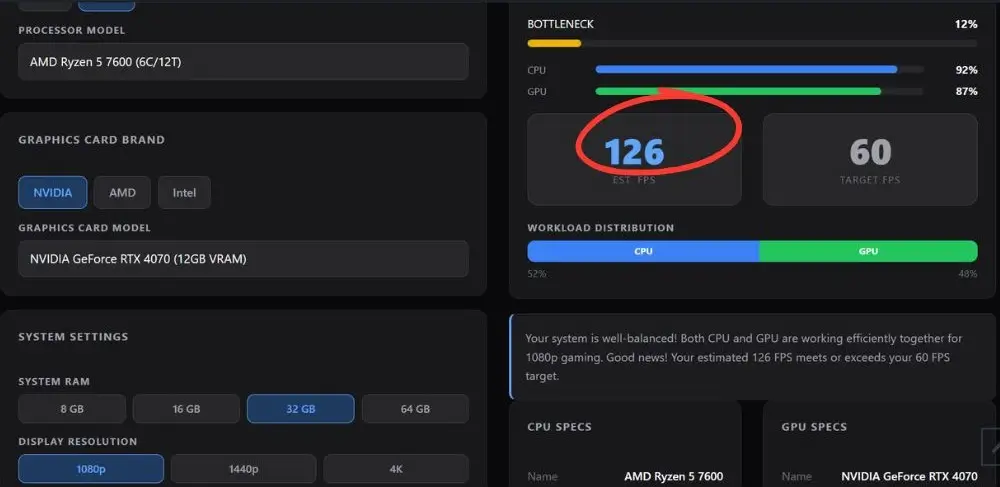
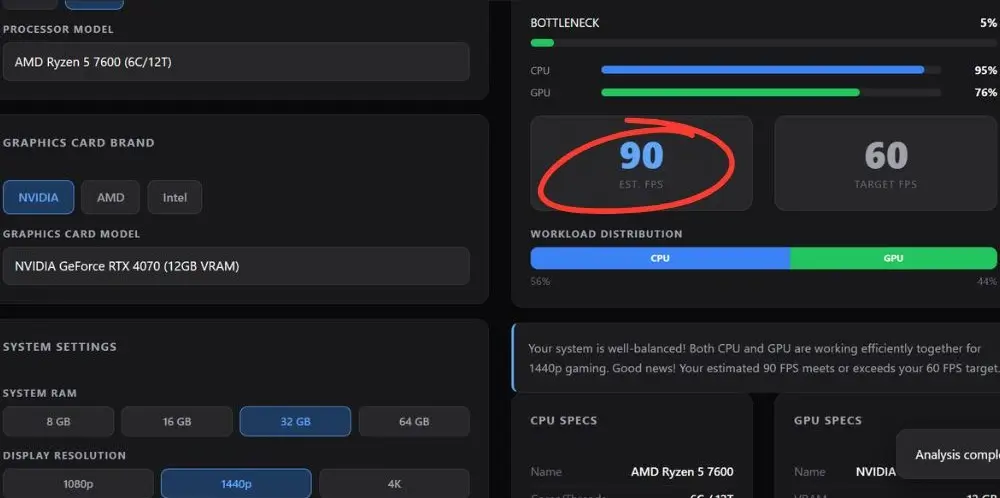
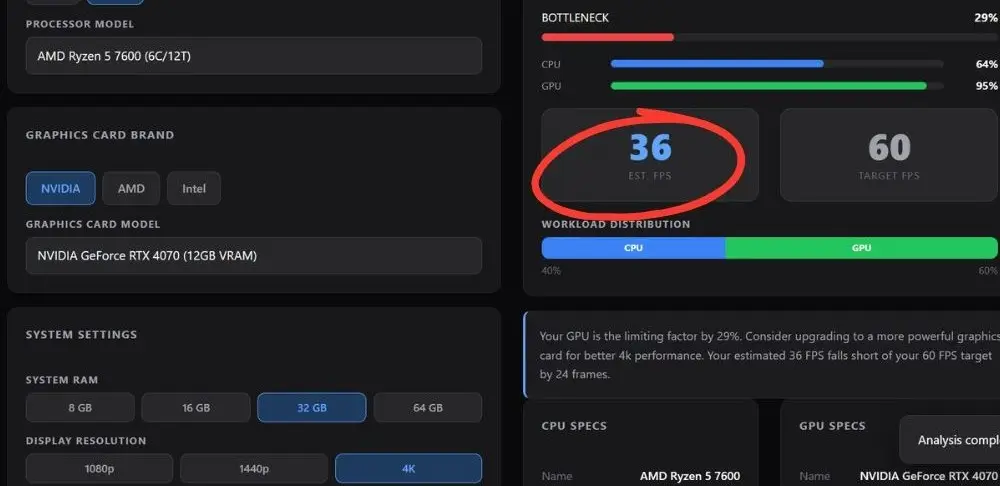
This is the piece that ties the whole comparison together, and it is the reason two people with the exact same GPU can get completely different advice. Instead of just describing this in theory, we ran the exact same build, an AMD Ryzen 5 7600 paired with an RTX 4070 and 32GB of RAM, through our own bottleneck calculator at all three resolutions, changing nothing except the resolution setting.
| Resolution | Bottleneck | CPU usage | GPU usage | Est. FPS | Result |
|---|---|---|---|---|---|
| 1080p | 12% | 92% | 87% | 126 FPS | Well-balanced, comfortably above the 60 FPS target |
| 1440p | 5% | 95% | 76% | 90 FPS | Well-balanced, the tightest match of the three |
| 4K | 29% (GPU) | 64% | 95% | 36 FPS | GPU-limited, misses the 60 FPS target by 24 frames |
The pattern is clear once you see the actual numbers. At 1080p and 1440p, this pairing stays well-balanced, with the CPU carrying slightly more of the relative load as resolution increases. The moment the same build jumps to 4K, the story flips hard. GPU usage climbs to 95%, the CPU has room to spare at 64%, and the bottleneck reading jumps to 29% with our calculator flagging the GPU as the limiting factor.
The estimated frame rate drops all the way to 36 FPS, well under a 60 FPS target. This is the shift most guides only describe in words: the same exact CPU and GPU pairing can be fine at 1080p and 1440p, then become clearly GPU-bound the moment you push it to 4K.
If you are not sure which part of your PC is actually holding you back right now, that is a much more useful question to answer than picking a resolution based on a general rule. Our guide on what is bottlenecking your PC breaks down how to tell a CPU bottleneck apart from a GPU bottleneck using free tools you already have.
Which Resolution Should You Actually Pick?
Use this as a simple starting point, not a strict rule:
- Competitive shooters and high refresh chasing (Valorant, CS2, Fortnite, Apex Legends): Stick with 1080p, especially if you are aiming for 165Hz or higher. A PCPartPicker forum discussion on this exact question landed on the same advice: at a competitive level, 1080p is easier on the GPU and gives you a better shot at holding your frame rate ceiling, while 1440p mainly adds visual polish rather than helping you win.
- Open-world, story-driven, and slower-paced games (RPGs, adventure titles, sim games): 1440p is usually worth it here. The extra clarity is easy to appreciate when you are not chasing 240 frames a second, and many mid-range GPUs handle it well.
- Mixed gaming on a 27-inch or larger monitor: 1440p is the more sensible everyday pick. It is sharp enough to notice and forgiving enough for a wide range of GPUs.
- Budget GPU, tight build: 1080p keeps your frame rate high without forcing you to lower every setting just to stay playable.
- High-end GPU with an older or mid-tier CPU: 1440p can actually help here by shifting load off an aging CPU and onto a GPU that has spare power to give.
The GPU tier you pair with your CPU matters just as much as the resolution itself. Keeping the same Ryzen 5 7600 and testing two different GPUs at 1440p shows this clearly:
| GPU | Bottleneck | CPU usage | GPU usage | Est. FPS | Result |
|---|---|---|---|---|---|
| RTX 4060 (8GB) | 23% (GPU) | 70% | 95% | 59 FPS | GPU-limited, misses the 60 FPS target by 1 frame |
| RTX 5070 Ti (16GB) | 13% (CPU) | 95% | 77% | 94 FPS | CPU-limited, comfortably above target |
With the budget RTX 4060, the GPU is maxed out at 95% usage and the calculator flags it as the limiting factor, missing the 60 FPS target by a single frame. Swap in the RTX 5070 Ti on the exact same CPU and RAM, and the bottleneck flips to the CPU at 13%, with the calculator’s own tip noting the CPU is starting to limit performance in battle royale games specifically, even though the estimated FPS is much higher overall. This is a good real-world example of why a “budget GPU” and a “strong GPU” paired with the same CPU can point to two completely different upgrade paths at the same resolution.
Whatever you pick, do not guess. Run your exact CPU and GPU combination through a bottleneck calculator at each resolution before you decide, since the same hardware can behave very differently depending on the game type and settings you use.
Common Mistakes People Make in This Decision
- Assuming 1440p will fix a low frame rate problem, when the actual issue is a CPU bottleneck that resolution barely touches.
- Buying a 1440p monitor without checking if the GPU can actually drive it in the games being played most.
- Ignoring that background programs and outdated drivers can hurt frame rate at either resolution just as much as the resolution choice itself. If your PC feels slower than it should regardless of resolution, our guide on why your PC might be running slow covers the common causes worth ruling out first.
- Trusting a flat “50% FPS drop” rule instead of checking real behavior for the specific games being played.
- Not checking VRAM. 1440p and 4K both lean harder on video memory, and a card that is short on VRAM can stutter even when the raw GPU horsepower looks fine on paper.
Frequently Asked Questions
Does 1080p really give a big FPS boost over 1440p?
It depends on the game. Real user testing shared on the Tom’s Hardware forum showed drops as small as 9% in some games and over 33% in others when moving from 1080p to 1440p on the same hardware, which is a wide range compared to the flat “56% drop” number that gets repeated based on pixel math alone.
Is 1440p worth it if I have a mid-range GPU?
Often yes, especially if you are not chasing the highest possible frame rate. A mid-range GPU can usually hold a solid frame rate at 1440p in most games, though heavier AAA titles may need some settings turned down.
Why do competitive players still use 1080p even with strong GPUs?
Because frame rate and consistency matter more to them than extra sharpness. A forum thread on PCPartPicker discussing this exact topic confirmed that 1080p is easier on the GPU and reduces the risk of frame rate drops during intense moments, which matters more at a competitive level than how crisp the image looks.
Does switching to 1440p fix a CPU bottleneck?
Not really. It can shift where the pressure sits by giving the GPU more work and the CPU a bit less, but if your CPU is genuinely too weak for a game’s demands, the bottleneck does not disappear, it just becomes harder to notice.
Should I skip straight to 4K instead of 1440p?
Only if you already have a high-end GPU and a large screen to actually see the benefit. For most builds, 1440p is the resolution that balances visual quality and frame rate without needing top-tier hardware.
Check Your Own Build Before You Decide
Reading FPS numbers from other people’s PCs only gets you so far. The fastest way to know how your exact CPU and GPU will handle 1080p, 1440p, or 4K is to test it directly. Our free PC bottleneck calculator lets you enter your own hardware, pick the game type you play most, and see which resolution actually fits your build instead of relying on a generic FPS chart. If you want to understand how accurate these tools really are before trusting the numbers, our breakdown of whether bottleneck calculators are accurate explains exactly what these tools can and cannot tell you.


