

Is Bottleneck Bad for PC? Here Is the Honest Answer
Is bottleneck bad for PC performance? Short answer: no, a bottleneck will not break your PC or damage any part inside it. Every single computer has one, even the most expensive gaming rig you can build. A bottleneck just means one part of your PC is working harder than the other parts, like a CPU that cannot feed data to your GPU fast enough. That is not a broken system. That is just how computers work.
But “not bad” and “not something to think about” are two different things. A small bottleneck is normal and free. A big one can quietly steal frames from your games every single day. This guide breaks down exactly when a bottleneck actually matters, when you can ignore it, and how to tell the difference using your bottleneck calculator results.
Table of Contents
Quick Answer: Is Bottleneck Bad for PC?
If your setup lands in the “no” rows, stop worrying about it and go play your games. If it lands in a “yes” row, keep reading.
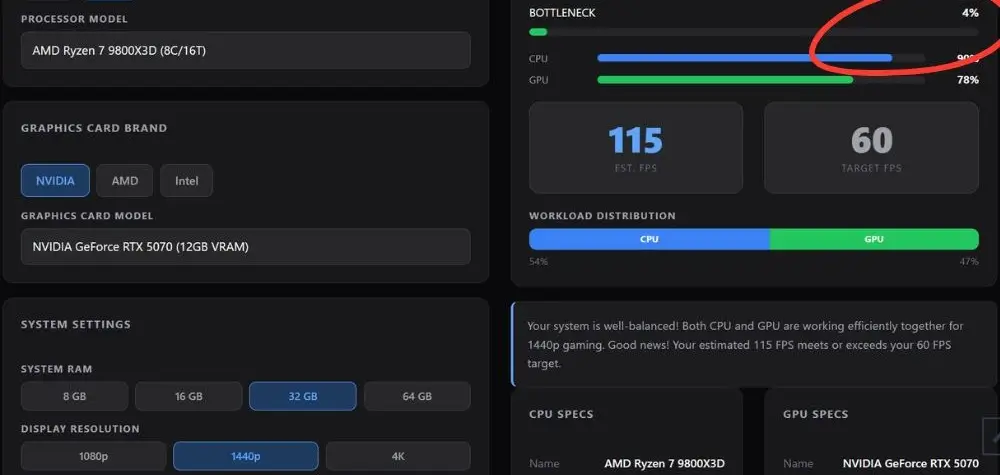
Ryzen 7 9800X3D + RTX 5070, 1440p: A 4% bottleneck shows what a well-balanced system looks like, with your GPU hitting 78% and CPU at 90%.
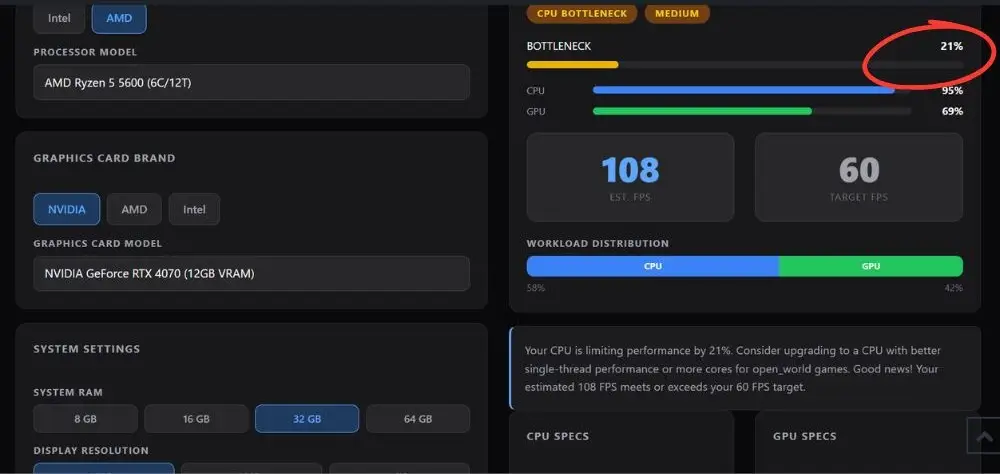
Ryzen 5 5600 + RTX 4070, 1080p: A 21% bottleneck lands this pairing right at the edge of the moderate range, worth watching but not yet an urgent upgrade case.
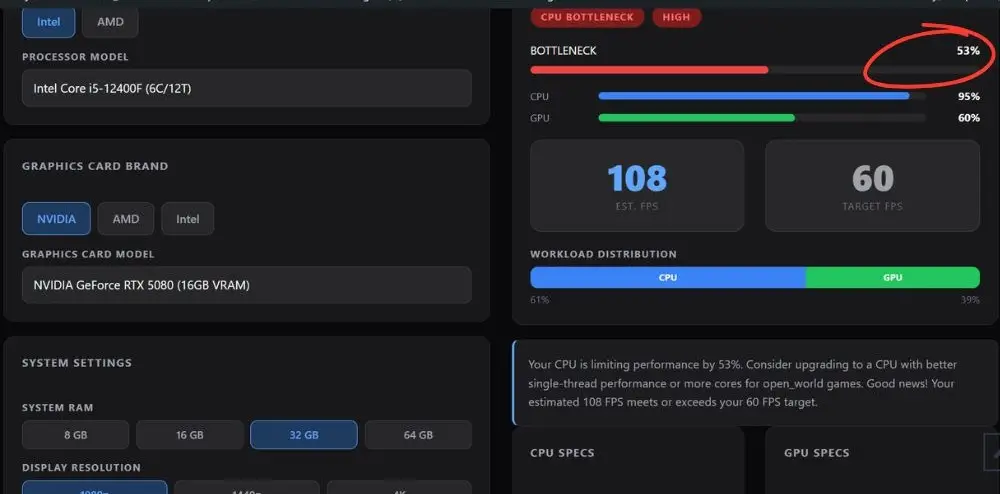
i5-12400F + RTX 5080, 1080p: A 53% bottleneck flags this as a high CPU bottleneck, since the aging CPU can’t keep up with a modern flagship GPU even at 1080p.
What a Bottleneck Actually Is
Think of your CPU and GPU like two workers on an assembly line. The CPU is the one handing off boxes (game data), and the GPU is the one stacking them (rendering frames). If the CPU is slow, the GPU sits there waiting with nothing to do. That waiting time is lost performance, and that is your bottleneck.
This can happen with almost any part in your PC, not just CPU and GPU:
- CPU bottleneck – your processor cannot keep up, so your GPU sits partly idle and your FPS drops
- GPU bottleneck – your graphics card is maxed out, which is actually the goal at higher resolutions
- RAM bottleneck – slow or single channel memory quietly makes every CPU limit worse
- Storage bottleneck – a slow hard drive causes long load times and texture pop in, but does not touch your FPS
- VRAM bottleneck – running out of video memory causes stutters and frame drops in busy scenes
Does Bottlenecking Damage Your Hardware?
No. This is the part a lot of articles gloss over, and it is the first thing people ask on hardware forums. A bottleneck is not a hardware failure. Your CPU running at 100% while your GPU sits at 60% is not your CPU “struggling” or “breaking.” It is simply doing all the work it can do. Nothing overheats or wears out faster because of a bottleneck by itself.
The only real risk to your hardware is heat, and that is a separate issue from bottlenecking. If your components are overheating and throttling, that is a cooling problem, not a bottleneck problem. Fixing your case airflow or reapplying thermal paste solves that, and it has nothing to do with pairing your parts correctly.
When Should You Actually Worry?
Here is the line most people are looking for. A bottleneck becomes worth fixing when you can actually feel it while gaming, not just see a percentage on a screen.
Watch for these signs:
- Your GPU usage sits well below 90% while your CPU sits near 100%, and your FPS is lower than benchmarks say it should be
- Frame times feel inconsistent even though your average FPS number looks fine
- Turning down graphics settings barely changes your frame rate, which usually points to a CPU limit rather than a GPU one
- You paired a modern GPU like an RTX 5070 or RTX 5070 Ti with a CPU that is several generations old
If none of that describes your build, your bottleneck is just normal hardware variation and not a real problem.
How to Check Your Own Bottleneck
Guessing at this leads nowhere. The fastest way to know for sure is to run your exact CPU and GPU combo through a pc bottleneck tester and compare that against real benchmark numbers, since calculator results and real world gameplay do not always match perfectly (more on that below).
A few things worth checking before you assume you have a problem:
- Confirm your RAM is running in dual channel mode and at its rated speed, not the slower default JEDEC speed
- Check whether your motherboard BIOS has XMP or EXPO turned on
- Compare your in-game GPU usage against your CPU usage using any free monitoring overlay
- Look up real benchmark numbers for your exact CPU and GPU pairing on sites like GamersNexus or Tom’s Hardware rather than relying on a percentage alone
If you are pairing new parts, guides like best GPU for Ryzen 7 9800X3D or does i7 12700K bottleneck RTX 5080 can save you from an expensive mismatch before you buy anything.
Fixing a Real Bottleneck
If your bottleneck is actually costing you noticeable FPS, the fix depends on which part is holding you back.
CPU bottleneck: upgrading your GPU will not help here. You need a faster processor, or you need to lower settings that lean heavily on the CPU, like draw distance or physics detail in strategy and simulation games.
RAM bottleneck: before spending anything, turn on XMP or EXPO in your BIOS and confirm you are running dual channel. This alone fixes a surprising number of “CPU bottleneck” complaints. If that is not enough, check our best RAM for gaming guide or compare DDR4 vs DDR5 if you are due for a platform change.
GPU bottleneck: at 1440p or 4K, this is usually expected and not something to fix. If you are GPU-bound at 1080p on a card that should not be struggling, compare your card against alternatives like RTX 4060 vs RTX 5060 or RX 9070 XT vs RTX 5070 Ti to see if an upgrade actually makes sense for your resolution.
Storage bottleneck: this only affects load times and texture streaming, never your in game FPS. An SSD upgrade fixes it, but it will not raise your frame rate.
Frequently Asked Questions
Is 20% bottleneck bad for a PC?
A bottleneck around 20% is where most PC builders on forums like r/buildapc start recommending you actually look into it, rather than ignore it. Under 10% is considered normal and not worth chasing.
Once you cross into the 20% range on a CPU bottleneck specifically, it usually means you can feel the difference in game, not just see it in a percentage. GPU bottlenecks at that same percentage are far less concerning, since a GPU running near its limit is expected, especially at 1440p and 4K.
Are bottleneck calculators accurate?
They are a helpful starting point, not a perfect prediction. Bottleneck calculators compare your parts against general benchmark data, but real world performance depends on the specific game, your settings, your resolution, and even your RAM speed, none of which a static percentage can fully capture.
Some builders on forums like PCPartPicker argue that bottleneck percentages should never be treated as a fixed law, since the actual limiting part shifts depending on what you are doing at that exact moment. Treat a calculator result as a direction to investigate, then confirm it with real benchmarks for your exact CPU and GPU pairing.
Does bottlenecking shorten the life of my CPU or GPU?
No. A bottleneck does not wear out your hardware faster. Your components are built to handle uneven workloads, and a part running at 100% usage is not damaging itself, it is just doing its job. Heat is the only real threat to component lifespan, and that is a separate issue from bottlenecking.
Is a GPU bottleneck always bad?
No, it is often the goal. When your graphics card is fully utilized and your CPU has headroom to spare, that means your system is using its most expensive component to its full potential, which is exactly what you want at higher resolutions.
Can I fix a bottleneck without buying new parts?
Often, it’s possible to fix a bottleneck without any hardware upgrade. Enabling XMP or EXPO, confirming dual-channel RAM, updating GPU drivers, and adjusting CPU-heavy settings like draw distance can close a meaningful chunk of the bottleneck gap before you spend anything on new hardware.
Final Words
A bottleneck is not something to lose sleep over. Every PC has one, and most of the time it is just your components taking turns doing the heavy lifting. The only thing that matters is whether that gap is big enough to actually cost you frames you would notice. Check your numbers, fix the easy stuff first like RAM speed and BIOS settings, and only reach for a new part once you know for sure which one is actually holding you back.


