
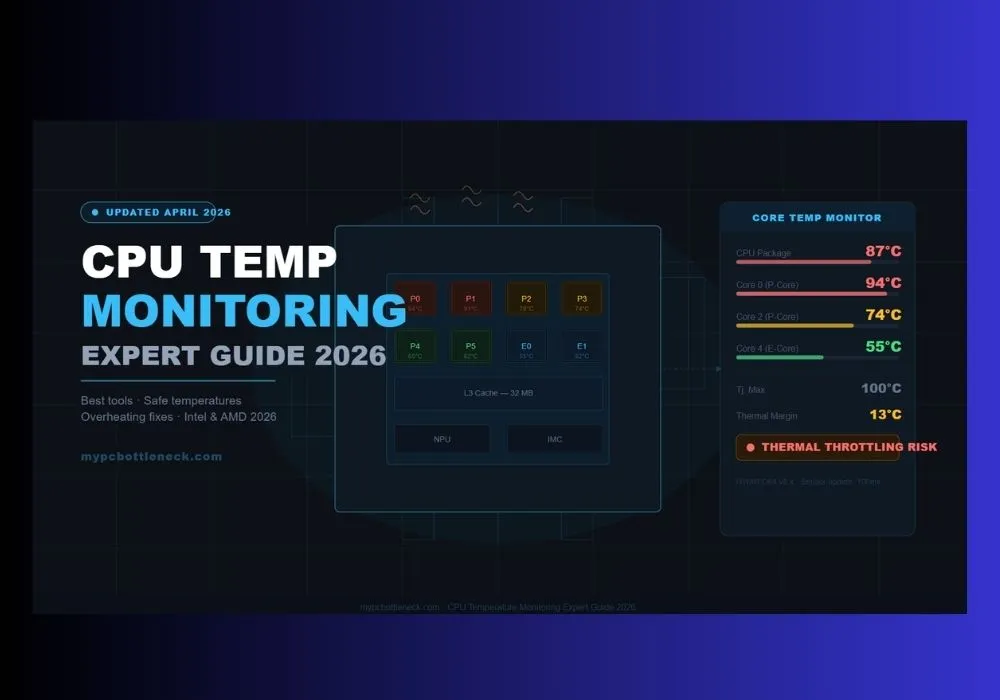
CPU Temperature Monitoring – Expert Guide To Boost Your PC (2026)
Your computer’s CPU is the control center and just like your own brain when you’re working on a tight deadline, it tends to get hot under the collar. Whether you’re the kind of gamer who leaves their rig running for 12 hours straight, a video editor wrestling with the demands of 4K video processing or a data center manager responsible for keeping thousands of servers ticking over CPU temperature monitoring is one of those fundamentals of keeping your PC in good nick that’s all too often overlooked.
Taking a chance and ignoring the temperature data isn’t just going to make your system slow down a bit it could end up costing you hundreds of dollars in repairs, hours of down-time and a permanently damaged processor. In this in-depth guide, we’ll be covering everything from the basics of how your CPU produces heat in the first place, to the tools that the pros use, what temperatures are safe for different types of processor and how to diagnose and sort out any overheating problems before they wipe out your whole system.
Key Insight
The most common cause of “mysterious” FPS drops, stuttering, and system instability is thermal throttling the CPU silently slowing itself down due to overheating. Most users never see it without a monitoring tool running.
How CPUs Generate Heat
Every time your CPU actually executes an instruction, a whole lot of electrical current is zipping through billions of teeny-tiny transistors. A bit of that energy ends up being converted into heat from the electrical resistance. And the higher the clock speed is running, & the more of those cores are cranking away all at once, the more heat gets generated
Modern top-of-the-line CPUs like that AMD Ryzen 9 9950X3D (16 cores, Zen 5) and that Intel Core Ultra 9 285K (24 cores, Arrow Lake) are some seriously impressive engineering feats – but stuffing billions of transistors into a bit of silicon the size of a fingernail is just asking for thermal pressure to build up. Processors that have TDP ratings running from 65 Watts all the way up to 253 Watts will start spiking temperatures in no time at all, when they’re under full load.
Heat from the CPU die goes out through a metal heat spreader (that’s the IHS) → then gets shifted through thermal paste → then gets carried off into a heatsink or water block → and finally out the case with the help of a fan or two. If there’s a weak link anywhere in that chain dried up thermal paste, a clogged up heatsink, fans spinning in the wrong direction or a cooler that’s just not up to the job temperatures start zooming upwards in no time.
2026 Architecture Note
Intel’s Arrow Lake (Core Ultra 200 series) is a chiplet-based design different processing “tiles” (CPU cores, GPU, NPU, I/O) run at different temperatures. AMD’s Zen 5 similarly has individual CCD temperatures. HWiNFO64 shows each CCD separately revealing 10–15°C differences between core clusters that no other tool exposes.
Safe CPU Temperature Ranges in 2026
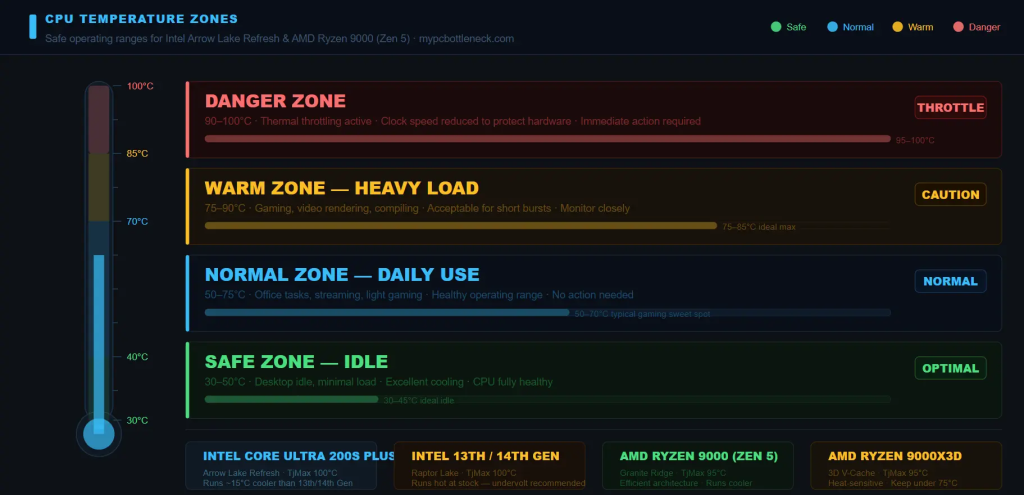
Understanding the numbers your monitoring software shows is as important as knowing which software to use. Here are the current guidelines based on 2026 hardware.
| Usage State | Temperature Range |
|---|---|
| Idle (Desktop) | 30–50°C |
| Light Use (Office/Web) | 40–70°C |
| Gaming / Rendering | 60–85°C |
| Throttle Zone | 90°C+ |
Per-Platform Safe Limits — 2026 CPUs
| CPU Platform | TjMax | Max Under Load | Status |
|---|---|---|---|
| Intel Core Ultra 200S Plus Arrow Lake Refresh — Launched Mar 26, 2026 | ~100°C | 85°C | Latest |
| Intel Core Ultra 200S Arrow Lake — Oct 2024 | ~100°C | 85°C | Runs Cool |
| Intel 13th / 14th Gen Raptor Lake — Legacy | 100°C | 80°C | Runs Hot |
| AMD Ryzen 9000 (Zen 5) Granite Ridge | 95°C | 80°C | Efficient |
| AMD Ryzen 9000X3D 3D V-Cache — 2026 Gaming King | 95°C | 75°C | Heat Sensitive |
| AMD Ryzen 7000 (Zen 4) | 95°C | 85°C | Normal |
⚠ Critical Threshold
Most CPUs begin thermal throttling when approaching 90–100°C. Sustained operation at these temperatures accelerates transistor wear, degrades clock performance, and can permanently shorten your CPU’s lifespan. If temperatures regularly exceed 90°C under normal gaming, act immediately.
Warning Signs Your CPU Is Overheating
You don’t always need monitoring software to spot trouble. Overheating CPUs exhibit clear symptoms. Get to know the early signs that your CPU is overheating instead of getting frustrated trying to figure out what is bottlenecking your PC.
- Sudden, unexplained frame drops or stuttering mid-game
- PC restarting or shutting down without warning under load
- Blue Screen of Death (BSOD) errors during intensive tasks
- Fans spinning at maximum RPM constantly, even at idle
- “CPU Over Temperature” error at startup (BIOS POST screen)
- Sluggish performance after extended gaming/rendering sessions
- System freezes requiring a hard reboot to recover
- Clock speeds dropping mid-task visible in monitoring software
📌 Remember
Thermal throttling is silent. The CPU reduces clock speed without any visible error. The only way to catch it in real time is with monitoring software showing both temperature AND clock speed simultaneously which is why tools like HWiNFO64 paired with an in-game overlay are so valuable.
Best CPU Temperature Monitoring Tools in 2026
Based on independent testing across 8+ tools, verified for 2026 hardware including Intel Arrow Lake Refresh and AMD Ryzen 9000 Zen 5.
#1HWiNFO64
Best Overall — Enthusiasts & Professionals
Free★ Top Pick 2026
The undisputed champion for CPU temperature monitoring in 2026. In independent testing across multiple systems, HWiNFO64 delivered readings within 1–2°C of actual thermal camera measurements more accurate than any competing free tool. For Intel Arrow Lake, it separates P-core and E-core temperatures. For AMD Zen 5, it shows individual CCD temperatures revealing 10–15°C differences between core clusters invisible to other tools. Sensors update every 100ms by default.
| Specification | Details |
|---|---|
| Accuracy | ±1–2°C |
| CPU Usage | <1% |
| Platforms | Windows |
| Arrow Lake | Supported |
#2 Core Temp
Best Lightweight Option — Beginners
Free
Core Temp does one thing brilliantly: monitors your CPU’s temperature with near-zero system impact. In resource testing it uses only 8MB of RAM and ~0.3% CPU the lightest of any major monitoring tool. Accuracy stays within 3°C of motherboard sensor readings. Supports Intel Arrow Lake, AMD Ryzen 9000 (Zen 5), and all prior generations. Overheat protection can automatically shut down your PC if temperatures exceed your set threshold.
| Specification | Details |
|---|---|
| RAM Usage | ~8 MB |
| CPU Usage | ~0.3% |
| Alerts | Yes (auto-shutdown) |
| Zen 5 | Supported |
#3 MSI Afterburner + HWiNFO64
Best In-Game Overlay for Gamers
FreeUpdated Feb 2026
The best real-time gaming overlay combination in 2026. MSI Afterburner v4.6.7 (released Feb 2026) is confirmed alive and updated now supporting RTX 50 series, RX 9000, Ryzen 9000, and Intel Core Ultra 200. Paired with HWiNFO64 as the data source and RTSS as the overlay engine, you get CPU temp, GPU temp, FPS, and clock speeds displayed directly on-screen while gaming with near-zero performance impact.
⚠ Phishing Warning
Only download from msi.com or guru3d.com. MSI has issued official warnings about fake download sites designed to steal data. Any other source is a fraud.
| Specification | Details |
|---|---|
| Version | v4.6.7 (Updated Feb 2026) |
| Compatibility | RTX 50 series, RX 9000, Ryzen 9000, Core Ultra 200 |
| Performance Impact | Near-zero |
| Overlay Engine | RTSS |
#4 HWMonitor by CPUID
Best All-Around Hardware Snapshot
Free
Updated regularly by CPUID, fully supporting AMD Granite Ridge (Zen 5), AMD Strix Point APUs, Intel Arrow Lake, and Intel Lunar Lake. Reads all key health sensors voltages, temperatures, fan speeds, power draw in a clean tree-view. The portable ZIP version runs from a USB drive with zero installation, ideal for quick diagnostics across multiple machines. Free forever; $20 Pro upgrade adds graphs and remote monitoring.
| Specification | Details |
|---|---|
| Version | Regularly Updated |
| Supported CPUs | Zen 5, Strix Point, Arrow Lake, Lunar Lake |
| Version Type | Free (Portable ZIP available) |
| Pro Upgrade | $20 (adds graphs & remote monitoring) |
#5 Open Hardware Monitor
Best Free Open-Source Option
FreeOpen Source
Completely free and open-source. Reads CPU core temperatures via Digital Thermal Sensors (DTS), GPU temperatures for Nvidia and AMD, and storage health via S.M.A.R.T. Requires no installation, uses only Windows’ standard hardware access protocols no unauthorized system modifications. Also runs on x86-based Linux systems. All collected sensor values are exposed via WMI.
| Specification | Details |
|---|---|
| License | Free & Open Source |
| Installation | None (Portable) |
| Platform Support | Windows + x86 Linux |
| Extra Features | S.M.A.R.T. storage + WMI export |
↗ Download from openhardwaremonitor.org
#6 AMD Ryzen Master
Official Tool for AMD CPU Owners
FreeAMD Official
The official AMD monitoring and tuning tool. Provides manufacturer-verified temperature readings alongside direct control over Precision Boost Overdrive, per-core overclocking, memory timings, and power limits. Essential for Ryzen 9000X3D owners, where 3D V-Cache thermal sensitivity makes precise monitoring critical. No third-party tool matches its depth or accuracy for AMD processors.
| Specification | Details |
|---|---|
| Type | Official AMD Tool |
| Key Features | Precision Boost Overdrive, per-core OC |
| Best For | Ryzen 9000X3D (3D V-Cache monitoring) |
#7 Intel XTU
Official Tool for Intel CPU Owners
FreeIntel Official
Intel’s Extreme Tuning Utility is the counterpart to AMD Ryzen Master. In 2026 it supports Core Ultra 200S Plus (Arrow Lake Refresh) with accurate per-core temperature monitoring alongside power limit controls, Turbo Boost settings, and built-in stress testing. Especially useful for identifying Turbo Boost thermal spikes on the new Arrow Lake Refresh chips.
| Specification | Details |
|---|---|
| Type | Official Intel Tool |
| Supported CPUs | Core Ultra 200S Plus (Arrow Lake Refresh) |
| Key Features | Per-core temps, Turbo Boost, built-in stress test |
Step-by-Step: How to Monitor CPU Temperature
Method 1 — Core Temp (Beginner)
1 Download Core Temp
Get it from alcpu.com/CoreTemp only. During install, uncheck any optional bundled software offers.
2 Launch and read temperatures
Per-core temperatures appear instantly. Note the Tj. Max value — this is your CPU’s throttle temperature limit.
3 Set overheat protection
Go to Options → Overheat Protection to set automatic alerts or emergency shutdown thresholds.
4 Monitor at idle AND under load
Check temps at idle, then during a game or rendering task. Compare both readings against the safe ranges table above.
Method 2 — HWiNFO64 (Advanced)
1 Download the portable version
From hwinfo.com — no installation needed. Just extract and run.
2 Launch in Sensors Only mode
Select Sensors Only at the startup prompt, then click Start. The full sensor window opens.
3 Find your key CPU readings
CPU Package — best single overall temperature. CPU (Tctl/Tdie) — AMD cooling control value. CCD1 / CCD2 — individual Zen 5 chiplet temps.
4 Set alerts and log data
Right-click any sensor → Log to CSV for ongoing tracking. Set color-coded alert thresholds via Customize Sensors.
Method 3 — In-Game Overlay (HWiNFO64 + MSI Afterburner)
1
Install HWiNFO64
Run it in Sensors Only mode. Leave it running in the background.
2 Install MSI Afterburner
Accept the RTSS (RivaTuner Statistics Server) installation it’s the engine that draws the overlay on-screen.
3 Enable CPU Temperature in the OSD
Afterburner → Settings (gear icon) → Monitoring tab → Scroll to CPU Temperature → check box → check Show in OSD.
4 Launch your game
Your live CPU temp, GPU temp, FPS, and clock speeds appear as a transparent overlay in the corner of your screen no Alt-Tab needed.
Method 4 — BIOS/UEFI (No Software Required)
Restart your PC and press Delete, F2, or F10 during boot (varies by motherboard brand). Navigate to Hardware Monitor, PC Health Status, or H/W Monitor. Note: BIOS only shows idle temperatures readings under Windows load will be significantly higher.
For a complete walkthrough of every sensor and how to read them, read our HWiNFO64 guide.”
How to Fix an Overheating CPU
If your monitoring data shows dangerous temperatures, follow these solutions in order from free to paid, easy to involved.
Fix 01 :Clean Dust from System
Dust accumulation is the #1 cause of overheating. Use compressed air to clean fans, heatsink fins, and case dust filters. Do this first before anything else.
→ Cost: Free | Frequency: Every 3–6 months
Fix 02 : Reapply Thermal Paste, ( read How to apply thermal paste)
Old thermal paste dries and cracks, creating air pockets that drastically reduce heat transfer. Use Arctic Silver 5, Noctua NT-H1, or Thermal Grizzly Kryonaut.
→ Drop of 10–20°C | Every 2–5 years
Fix 03 : Improve Case Airflow
Ensure balanced intake and exhaust fans. Positive pressure (more intake than exhaust) reduces dust while maintaining airflow. Clean up cable management.
→ Drop of 5–15°C | Free (cable mgmt)
Fix 04: Upgrade Your CPU Cooler
Stock coolers struggle with modern high-TDP CPUs. Budget: Cooler Master Hyper 212 (~$30). Premium air: Noctua NH-D15 (~$100). Best thermal: 360mm AIO liquid cooler.
→ Drop of 15–30°C | One-time cost
Fix 05: Optimize BIOS Fan Curves
Enter BIOS and set fan curves to spin up faster at lower temperature thresholds. More aggressive curves prevent heat from accumulating before throttling kicks in.
→ Cost: Free | Immediate effect
Fix 06: Undervolt Your CPU
Use Intel XTU or AMD Ryzen Master to reduce CPU voltage slightly while maintaining stability. Especially effective for Intel 13th/14th Gen which run dangerously hot at stock voltages.
→ Drop of 10–20°C | Free | For Intel 13/14th Gen especially
Fix 07: Cap Frame Rate in Games
Using RTSS (with MSI Afterburner) or in-game frame rate caps, limit FPS to reduce sustained CPU load. If your CPU runs 15°C cooler at 60 FPS vs. uncapped, the trade-off is worthwhile.
→ Cost: Free | Instant effect during gaming
Fix 08: Lower Room Temperature
Even the best cooler struggles in a hot room. Ambient temperature directly affects what your cooler can achieve. Even a 5°C cooler room can lower CPU temps meaningfully.
→ Cost: Varies | Especially relevant in summer
2026 CPU Landscape: Thermal Context
AMD Ryzen 9000 (Zen 5) — The Efficiency Leader
AMD’s Zen 5 architecture is incredibly efficient. Mid-range chips like the Ryzen 5 9600X and Ryzen 7 9700X deliver strong performance without requiring massive cooling. The flagship Ryzen 9 9950X3D with 2nd-Gen 3D V-Cache is the gaming king of 2026, but requires careful thermal management its V-Cache stacks are heat-sensitive and its TjMax is a strict 95°C.
Intel Core Ultra 200S Plus (Arrow Lake Refresh) — The New Competitor
Launched March 26, 2026, the Core Ultra 7 270K Plus and Core Ultra 5 250K Plus represent Intel’s most competitive desktop chips in years. Intel claims up to 15% gaming performance improvement over original Arrow Lake, backed by a tile-based architecture that already ran 15°C cooler than 13th/14th Gen at equivalent workloads. If you’re still on a 13th or 14th Gen Intel CPU and seeing temperatures above 90°C under gaming, that’s normal for those chips but undervolting is still strongly recommended.
📌 Intel 13th/14th Gen Owners
13th and 14th generation Intel Core processors are known to run extremely hot at stock settings up to 100°C under sustained gaming load on i9 models. Undervolting via Intel XTU is the single most effective fix. Upgrading the cooler alone may not resolve the issue. This is a known architectural characteristic of those CPUs.
Quick Diagnostic Checklist
Use this checklist when temperatures are high before spending any money on new hardware:
- Check temps at idle AND under load using HWiNFO64 or Core Temp
- Clean all dust from fans, heatsinks, and case filters
- Verify fans are spinning correctly and at expected speeds
- Check thermal paste condition — if over 3 years old, replace it
- Inspect case airflow — ensure cables aren’t blocking airflow paths
- Review fan curves in BIOS — make them more aggressive at lower temps
- Check if undervolting reduces temps — especially for Intel 13th/14th Gen
- Monitor under real workload (gaming, rendering) — not just desktop idle
- Check ambient room temperature — great coolers still struggle in a hot room
- Only then consider cooler upgrades — after completing all steps above
FAQS
1. What is the max safe CPU temperature while gaming in 2026?
The ideal CPU temperature for a smooth gaming session usually sits between 60°C and 85°C – a range that most modern processors can comfortably handle. But to make sure you’re getting the best out of your chip, it’s worth keeping an eye on the temperature. Going over 85°C for extended periods will generally impact performance, make your system feel a bit unstable and also potentially shorten its lifespan.
2. What are the signs of thermal throttling on my CPU?
Thermal throttling kicks in when your CPU realises it’s getting too hot i.e CPU throttling. That usually happens when it’s forced to reduce its speed to prevent overheating. You’ll probably notice it as a sudden drop in Frames Per Second, or maybe some stuttering, or even that the clock speed will nose-dive when under heavy load – and performance just won’t be as consistent as you’d like. The best way to check if it’s happening is to keep an eye on temperature and clock speed using some of the monitoring tools out there.
3. Can super high CPU temperatures actually cause permanent damage?
Yep, running your CPU at temperatures above the 90-100°C mark for too long is likely to cause problems down the line. While modern chips do have some built in protection to stop things getting too out of hand, the reality is running your CPU at extreme temps regularly will eat into its lifespan, make it less efficient and make your whole system feel a bit wonky.
While monitoring CPU temperatures, enabling Hardware-accelerated GPU scheduling can be worth trying, as it may slightly shift some workload between the CPU and GPU, but it is not a fix for overheating or system damage.
4. Is Your CPU Causing a Bottleneck?
High CPU temperatures often go hand-in-hand with performance bottlenecks. Use our free bottleneck calculator to find out if your CPU and GPU are properly balanced.Check Your PC Bottleneck →
Conclusion
CPU temperature monitoring is no longer optional in 2026 it’s a critical part of maintaining a high-performance, stable PC. Whether you’re gaming for hours, editing 4K video, or managing heavy workloads, keeping your CPU within safe temperature limits directly impacts both performance and hardware longevity. The good news? Most overheating issues are easy to diagnose and fix with the right tools and a bit of maintenance. By staying proactive monitoring temperatures, optimizing airflow, and addressing thermal issues early you can prevent costly damage and ensure your system runs at peak efficiency for years to come.
