
PSU Failing Symptoms-8 Warning Signs Your PSU Is Dying
PSU failing symptoms are easy to miss because they look like other problems. The most common sign is a PC that shuts down or restarts by itself while you game. Other signs are blue screens, freezing, a PC that will not turn on, and a burning smell or buzzing from the power supply.
If your PC shuts down randomly while gaming and your temperatures look normal, check the power supply next. This guide shows the 8 signs, how to check if it is really the PSU, and what to do about it.
A failing PSU is not the same as a bottleneck. A bottleneck gives you low FPS, but the PC stays on. A bad PSU makes your PC crash, restart, or turn off.
PSU Failing Symptoms- Quick checklist
- 1Random shutdowns or restarts under load are the top sign.
- 2Check your CPU and GPU temperatures first.
- 3Look for Kernel-Power Event ID 41 in Windows Event Viewer.
- 4Swap in a known-good PSU to be sure.
PSU Failing Symptoms: 8 Signs of a Dying Power Supply
A power supply rarely dies all at once. It usually gets worse over time, so the early signs matter.
1. Your PC Shuts Down Randomly While Gaming
This is the number one PSU failing sign. The screen goes black and the PC turns off, like someone pulled the plug. It often happens in busy scenes, when your parts need the most power. A weak or damaged PSU cannot keep up at that moment.
Sometimes the PC turns back on right away. Sometimes it stays off for a while.
2. Your PC Restarts by Itself
The PC does not turn off. It restarts instead, often when you open a heavy game. This has the same cause as sign 1: the PSU cannot give steady power under load.
3. Blue Screens Start Showing Up
Blue screens can happen when a part does not get the power it needs. The graphics card is usually the first part to feel it, because it uses the most power.
Blue screens also come from drivers and RAM problems. One blue screen does not prove the PSU is bad. Look at the other signs too.
4. Games Freeze or Stutter
Uneven power can make a game freeze or stutter. Heat and other problems can do this too. If you also have other signs on this list, the PSU becomes more likely.
5. Your PC Will Not Turn On, or Keeps Restarting
A PC that will not boot, or that turns on and off again and again, is a strong sign. In one Tom’s Hardware forum thread, a gamer’s PC shut off while gaming, then kept restarting over and over.
6. You Hear Buzzing, Clicking, or Loud Coil Noise
A power supply should be quiet. Clicking, buzzing, or loud coil noise is a warning sign. If you smell burning, turn off the PC and unplug it. Do not use it again until the PSU is replaced.
7. Other Parts Act Strangely
A weak PSU can cause odd problems that look like other parts failing. Examples are graphics glitches, USB devices that disconnect, and errors with no clear cause.
8. The PSU Is Old or Low Quality
Age and quality matter. In that same Tom’s Hardware forum thread, the gamer used a 500W unit that was about 4 to 5 years old. A moderator said it was such an old, cheap design that it was not truly a 400W power supply. A cheap unit can fail even if it never overheats.
Is It Really the PSU? Check These First
Many problems look like PSU problems. Check these first, so you do not buy a new PSU you do not need.
Step 1: Check Your Temperatures
An overheating CPU or GPU can shut your PC off just like a bad PSU. If it happens under load, heat or too little PSU power are the two main suspects.
Open HWiNFO64 while you game and watch your temperatures. Compare them with the safe numbers in our GPU temperature range guide. If your parts get too hot, read about thermal throttling and fix the heat first.
Temperatures that look fine do not clear the PSU. In the forum thread above, the gamer’s CPU and GPU temperatures were normal, and the PSU was still the problem.
Step 2: Check Windows Event Viewer
Windows keeps a record of unexpected shutdowns.
- Click Start and type Event Viewer, then open it.
- Go to Windows Logs, then System.
- Look for a critical event called Kernel-Power, with Event ID 41.
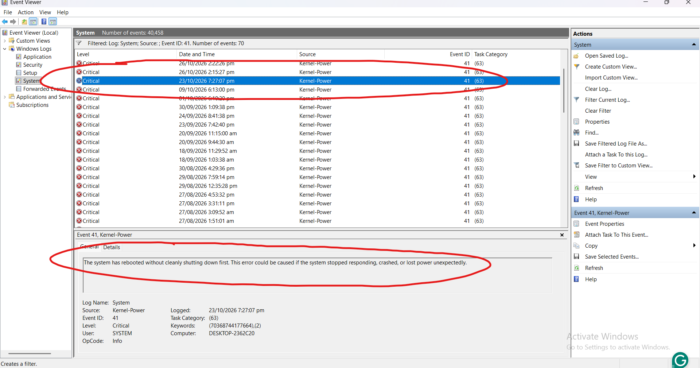
Microsoft explains that Event ID 41 means Windows restarted without a clean shutdown. This can happen if the PC froze, crashed, or lost power. The event alone does not tell you the cause.
Answers on Microsoft’s Q&A forum say that Event ID 41 with a bugcheck code of 0 often points to a power problem. Treat it as a clue, not proof.
Step 3: Check Your Cables and Wall Power
Turn the PC off and unplug it. Then push every power cable in firmly, especially the graphics card power cable. Try a different wall outlet too.
Step 4: Check If Your PSU Is Too Small
A PSU that worked fine on an old graphics card may struggle with a new one. Use our PSU calculator to see how much power your parts need. If you are not sure of your current PSU’s model or wattage, our guide on how to check what PSU you have covers six quick methods.
How to Test a Power Supply
Swap test (best way). Borrow a good PSU with enough watts and use it for a few days. If your games run fine with the borrowed PSU, your old one was the problem.
Watch your sensors. Keep HWiNFO64 open while you game and look at the voltages. Sensor readings can be off, so use them as a clue only.
For safety, never open a power supply. Parts inside can hold a charge even when it is unplugged.
What to Do If Your PSU Is Failing
- Stop heavy gaming on it. A PC that shuts off suddenly is not safe to keep pushing.
- Replace it. Do not repair it.
- Pick the right wattage. Use the PSU calculator.
- Check the quality. Look up models in our PSU tier list.
- Read our buying guide. See the best PSU for gaming PC picks.
The gamer in the forum thread replaced the old 500W unit with a 650W model. His voltage readings looked stable after that.
How to Prevent Power Supply Failure
- Buy a quality unit with headroom: A PSU running near its limit is stressed constantly, which wears out its components faster. Extra capacity keeps it cooler and under less strain.
- Keep dust out of the fan and vents: Dust traps heat, and heat is one of the main things that degrades a PSU over time.
- Use a good surge protector: This protects the PSU from power spikes and unstable wall power.
- Replace an old PSU before adding a power-hungry GPU: An aging unit may not handle the extra load, so upgrading first avoids pushing it past what it can deliver.
FAQs about Power Supply Failure Symptoms
Can a PC shut down while gaming even if the temperatures look fine?
Yes. In a Tom’s Hardware forum thread, a gamer checked his CPU and GPU temperatures and they were normal. A moderator said that a PSU that does not overheat can still be the problem, because his cheap old unit was weak.
Can a power supply cause a PC to shut down with no warning?
Yes. In another Tom’s Hardware forum thread, a user whose PC turned off during games was told that any shutdown without warning makes the power supply a suspect.
What does Kernel-Power Event ID 41 mean?
It means Windows restarted without shutting down cleanly. The PC may have frozen, crashed, or lost power. Microsoft says the event alone does not show the cause, so check the other events in Event Viewer too.
Final Verdict
If your PC shuts off or restarts while you game, check temperatures first, then Event Viewer, then your cables. If the problem stays, swap in a known-good PSU to confirm. If the PSU is the cause, replace it with a quality unit that has the right wattage.
