
How to Overclock GPU in 2026: The Complete Up-to-Date Guide
How to overclock GPU and get more FPS without spending a single dollar on new hardware. Whether you own an NVIDIA RTX 50-Series, an AMD RX 9000 card, or an older GPU that still has plenty of life left, overclocking your GPU is one of the smartest free upgrades you can make right now.
This complete guide covers everything you need what overclocking GPU actually means, the newest software like MSI Afterburner 4.6.7, how to safely overclock GPU step by step, what’s changed this year for RTX 50-Series Blackwell and AMD RDNA 4 cards, and how to test GPU health once you’re done to make sure everything is running stable.
What Is GPU Overclocking and How to Overclock GPU?
Every graphics card comes from the factory with a “speed limit” called a clock speed. This determines how many operations your GPU can perform per second. When you overclock your GPU, you push that speed higher than the factory setting squeezing out extra performance without spending a single dollar.
The result is real: more frames per second (FPS) in games, faster video renders, and smoother gameplay.
In 2026, GPU overclocking is more accessible than ever. Modern tools like MSI Afterburner 4.6.7 (released in February 2026) now natively support NVIDIA’s RTX 50-Series Blackwell cards with quad-fan control and extended GDDR7 memory overclocking. AMD’s Radeon Software Adrenalin supports the new RX 9000 RDNA 4 lineup right out of the box. The process is no longer just for enthusiasts it’s genuinely beginner-friendly.
GPU Landscape: What Card Do You Have?
Before diving into the “how,” let’s quickly cover where we are in 2026, because overclocking behavior differs between GPU generations.
NVIDIA RTX 50-Series (Blackwell Architecture)
The current flagship lineup includes the RTX 5090, RTX 5080, RTX 5070 Ti, RTX 5070, and RTX 5060 Ti. These are built on NVIDIA’s Blackwell architecture, use GDDR7 VRAM, and feature the new GPU Boost 5.0 dynamic boosting system.
Key overclocking facts for Blackwell:
- Newer RTX 40- and 50-series architectures have tighter overclocking margins than older generations. You might get +50–100 MHz core on a 50-series card, whereas older RTX 30-series cards could often do +150–200 MHz.
- The RTX 5090 has a massive 575W TGP, so power delivery matters more than ever.
- These cards use the 16-pin 12V-2×6 power connector make sure it’s properly seated before overclocking. Connector issues have been a widely-discussed concern in the community.
- GDDR7 memory on RTX 50-series can be pushed significantly MSI Afterburner now supports overclocking it up to 36 GT/s (up from the default 30 GT/s on the RTX 5080-series), which is a meaningful upgrade in bandwidth-sensitive scenarios like 4K gaming with ray tracing.
AMD RX 9000-Series (RDNA 4 Architecture)
AMD’s 2025/2026 GPU lineup includes the RX 9070 XT, RX 9070, RX 9070 GRE, and RX 9060 XT. Built on TSMC 4nm with the RDNA 4 architecture, these GPUs feature significantly improved ray tracing, the new FSR 4 upscaler, and 16GB GDDR6 as standard.
Key overclocking facts for RDNA 4 :
- AMD limits the power limit adjustment to only +10% above base TDP in their software. This was a notable point of discussion on Overclock.net, as it restricts how far you can push these cards through standard tools.
- Community overclockers have found the RX 9070 can achieve +350 MHz on the GPU clock and push memory from 20 Gbps to 22 Gbps with stable results.
- These cards have a lot of overclocking headroom according to OC3D forum members arguably more headroom per watt than the previous RDNA 3 generation.
- Voltage tuning on RDNA 4 is possible via AMD Adrenalin Software or advanced tools like MoreClockTool from Igor’s Lab and OverdriveNTool for deeper control.
Still Running an RTX 40-Series or RX 7000?
You’re in great company these are still excellent overclockers. RTX 40-series (Ada Lovelace) and RX 7000 (RDNA 3) cards generally have more clock headroom than the latest gen and follow the same overclocking process described in this guide. RTX 40-series cards were also briefly affected by the NVIDIA driver voltage issue in early 2026 (more on that below), so keep your drivers up to date.
Is Overclocking GPU Safe?
Yes and it’s arguably the safest it has ever been.
Modern GPUs have built-in safety limits in their firmware that prevent dangerous voltage levels from being applied. Application crashes during overclocking are not hardware damage they’re just the card telling you to dial back the settings. As stated clearly in Tom’s Hardware forums: “You cannot damage your card unless you over-volt your GPU.”
The main safety rules remain the same:
Keep temperatures in check. For RTX 50-series and RX 9000 cards, aim to keep the GPU core below 85°C under sustained load. These are high-TDP cards and thermal management is more important than ever. If temps climb above 90°C, reduce your overclock or improve airflow first.
Don’t push voltage aggressively. Most overclocking software limits or grays out the voltage slider for beginners this is intentional and a good thing. Voltage increases are the one area that can genuinely reduce a card’s lifespan if overdone. Don’t touch voltage settings until you’re comfortable with the basics.
Go slow, test every step. A common mistake in every forum thread: someone raises the clock by +200 MHz at once, it crashes, and they panic. The correct method is to go +10–25 MHz at a time, test, then move on.
A realistic performance expectation : GPU overclocking delivers 5–15% FPS improvements on newer architectures (RTX 50, RX 9000). Older cards (RTX 30, RX 6000) can sometimes see up to 20% with the right settings. The gains are real, even if they’re slightly smaller on the latest hardware.
Important Driver Warning: NVIDIA RTX 50-Series Users
If you have an RTX 50-series card, there’s something you need to know right now before you start overclocking.
In late February and early March 2026, NVIDIA released driver 595.59 and it turned out to be one of the most troubled driver releases in recent memory. It caused fan detection failures, severely tanked performance in multiple games, and had to be pulled entirely by NVIDIA.
The follow-up driver 595.71 fixed those issues but introduced a new problem: it applied artificial voltage caps on many RTX 40- and 50-series cards, locking GPUs below 1 volt during overclocking attempts and reducing clock headroom by as much as 200 MHz. Community members on the GeForce forums were furious. One user described their overclock as “totally wrecked” overnight.
NVIDIA released Hotfix Driver 595.76 on March 5, 2026, which fixed the voltage cap. If you’re running 595.71, update to 595.76 or the current latest WHQL release immediately.
The lesson: Always check the current driver situation before overclocking. If your overclock suddenly stops working as expected, a driver update (or rollback) is the first thing to check. The safe driver to stay on right now is the latest stable WHQL release from nvidia.com/drivers.
Best Overclocking GPU Software in
MSI Afterburner 4.6.7 — Still the #1 Universal Tool
MSI Afterburner remains the gold standard for GPU overclocking in 2026. Version 4.6.7 (released February 2026) is the biggest update in years and brings full modern hardware support:
- Full RTX 50-Series support including quad-fan control for Founders Edition cards with 3–4 independent fans
- GDDR7 memory overclocking up to +3000 MHz offset for RTX 5000-series cards
- Unofficial RDNA 4 support for AMD RX 9000 cards
- New default Windows 11 Dark skin with a much cleaner look
- Experimental support for AMD Ryzen 9000 and Intel Arrow Lake CPU monitoring
- Updated RivaTuner Statistics Server (RTSS) 7.3.7 with 150+ improvements including PresentMon integration and extended DirectX 12 overlay support
Critical reminder from the developers: Only download MSI Afterburner from Guru3D.com or MSI.com. Dozens of other sites serve fake versions bundled with malware. This warning comes directly from the developer team and has been echoed constantly across forums.
What you see in the Afterburner dashboard: The main sliders you’ll work with are Core Clock (MHz offset), Memory Clock (MHz offset), Power Limit (%), Core Voltage (if unlocked), Fan Speed (%), and Temperature Limit.
Overclocking GPU NVIDIA — NVIDIA-Specific Tools
NVIDIA OC Scanner (inside Afterburner): Still the easiest starting point for any NVIDIA user. It automatically tests your card’s limits and applies a stable overclock with one click. Even with RTX 50-series cards, the OC Scanner provides a safe automated starting point though the community agrees you can often do better manually.
NVIDIA App (formerly GeForce Experience): The new NVIDIA App (replacing the old GeForce Experience) includes GPU performance controls and driver management. Make sure this is updated before you start overclocking, as it’s the gateway to driver updates and includes automatic shader compilation features added in 2026.
Overclocking GPU AMD — AMD-Specific Tools
AMD Radeon Software: Adrenalin Edition (Current 2025/2026 version): AMD’s driver package includes the best-integrated tuning tools in the company’s history. For RDNA 4 cards (RX 9000 series), navigate to Performance → Tuning in Adrenalin Software. You’ll find:
- Auto Tuning (Radeon Tuning): One-click automatic overclock the simplest starting point
- Manual tuning: Max Frequency Offset slider (MHz), Memory Frequency control, Power Limit (up to +10% on RDNA 4), and fan curve adjustment
- Note: The “Minimum GPU Clock Frequency” setting present in previous RDNA 2/3 generations is missing in RDNA 4 — only the Max Frequency Offset slider is available. This is a known change in the RDNA 4 tuning interface.
MoreClockTool (for AMD advanced users): Developed by Igor’s Lab, this free tool gives RX 9000 users access to deeper power limit adjustments beyond the +10% cap that Adrenalin Software imposes. Power limit bumps to 330W (up from the reference 240W) have been tested successfully on the RX 9070 with meaningful performance gains. This is for intermediate to advanced users only.
OverdriveNTool: Another community-recommended tool for AMD GPU tuning that pairs well with Adrenalin for detailed voltage/frequency curve work on RDNA 3 and RDNA 4.
Overclocking CPU and GPU Together
Many gamers overclock both CPU and GPU simultaneously to maximize performance. This is completely fine they’re separate components. The golden rule: do them one at a time. Stabilize your GPU first, then work on the CPU. If something crashes, you need to know which component is the culprit.
Best pairing in 2026:
- NVIDIA GPU → MSI Afterburner + Intel XTU (for Intel) or Ryzen Master (for AMD)
- AMD GPU → Adrenalin Software + Ryzen Master (for AMD) or Intel XTU (for Intel)
How to Overclock GPU Step-by-Step
This process works for both RTX 50-Series and RX 9000 cards. We’ll walk through MSI Afterburner for NVIDIA and Adrenalin for AMD.
Step 1 — Prepare Your System
Before touching any clock speed:
- Update your GPU drivers to the latest stable WHQL release. For NVIDIA users: confirm you’re on driver 595.76 or later (avoid the problematic 595.59 and 595.71 releases). For AMD: use the latest Adrenalin release from AMD.com.
- Clean your PC. Dust-clogged heatsinks are a silent overclock killer. A quick compressed air blast can drop temperatures by 5–10°C.
- Check your PSU. RTX 50-series cards are power-hungry. An RTX 5090 pulling 575W at stock can easily demand 650W+ when overclocked. Make sure you have a quality ATX 3.0/3.1 PSU with proper headroom at least 850W for RTX 5080 builds, 1000W+ for RTX 5090.
- Seat your 16-pin connector properly (RTX 50-series). Connector seating issues have caused real problems in the community. Double-check it.
Step 2 — Run and Record a Baseline Benchmark
This is non-negotiable. You need a “before” number to compare against.
Run one of these tools and note your score, average FPS, and GPU temperature:
- 3DMark Time Spy (free on Steam) — the most widely used benchmark in the community for comparing results
- Unigine Superposition (free) — great for stress testing after
- Or simply play your main game for 20 minutes at max settings and note the average FPS
Step 3 — Open MSI Afterburner (NVIDIA) or Adrenalin (AMD)
For NVIDIA: Open Afterburner. The default dashboard in v4.6.7 has a clean Windows 11 dark theme. You’ll see the current GPU temperature, clock speed, memory clock, and fan speed.
For AMD: Open Radeon Software → Performance → Tuning. Switch to Manual mode for full control.
Step 4 — Set Power Limit to Maximum
In Afterburner, drag the Power Limit slider all the way to the right (usually +20%). This gives your card permission to draw more power when needed, which is essential for a stable overclock. Do this before touching any clock sliders.
In AMD Adrenalin, slide the Power Limit to +10% (the maximum allowed on RDNA 4 hardware).
Step 5 — Raise Core Clock in Small Increments
This is where the actual overclocking gpu begins.
For RTX 50-series Blackwell cards, start with increments of +25 MHz (slightly more than the old +10 recommendation, as the community has found Blackwell responds well to this step size). Most RTX 50-series cards stabilize somewhere between +50 and +150 MHz on the core.
For RX 9000 RDNA 4 cards, try +50–100 MHz as a starting point, then test. Community results show these cards have significant headroom and can often accept +300–350 MHz on the GPU clock with proper cooling.
After each adjustment, click Apply in Afterburner and run your benchmark or game for 10–15 minutes. Look for:
- Any screen artifacts (colored flickers, pixel glitches) → memory is usually the cause
- Game crashes or driver resets → you’ve gone too far on core clock
- Temperatures above 85–88°C → back off or adjust fan curve first
Step 6 — Fine-Tune the Fan Curve
Don’t ignore this step, especially on RTX 50-series cards. In Afterburner, click the Fan tab and create a custom curve. A performance fan curve ramps the fans more aggressively as temperature rises, keeping your card cooler and allowing a more stable overclock. The tradeoff is slightly more noise worth it for gaming sessions.
RTX 5090 and 5080 owners: these cards have 3–4 independent fans that Afterburner 4.6.7 now controls individually. You can set them to run asynchronously for better cooling at specific hotspots.
Step 7 — Overclock Memory Clock
Once your core clock is rock solid, do the same with the Memory Clock.
For RTX 50-series with GDDR7, you have a massive overclocking range. Afterburner v4.6.7 extends the memory clock range to +3000 MHz offset for RTX 5000-series. The RTX 5080 in particular benefits greatly here its GDDR7 chips are often rated for 32 GT/s but shipped at 30 GT/s, so pushing them back toward their rated speed delivers real bandwidth gains. Start at +200 MHz increments, test, and keep going until you see artifacts.
For RX 9000 with GDDR6, the community default is to aim for 22 Gbps (up from 20 Gbps default). This is a proven, stable target for most RX 9070 and 9070 XT cards.
Signs of memory instability: visual artifacts, flickering textures, and glitchy shadows. These mean pull back the memory clock by one step.
Step 8 — Stress Test for Stability
Don’t skip this. See the dedicated section below.
Step 9 — Save and Auto-Apply at Startup
Once you’ve found a stable setting, save it as a named profile in Afterburner (e.g., “Daily Gaming OC”) and check “Apply overclocking at system startup”. Your overclock will automatically load every time Windows boots.
Pro tip from the community: Save two profiles a “Conservative” one (modest gains, maximum stability) and an “Aggressive” one (higher clocks for benchmarking). The conservative profile is what runs every day; the aggressive one comes out when you want to push 3DMark scores.
How to Test GPU Health and Overclock Stability
This is the most important section for anyone who wants a stable daily overclock rather than a card that crashes mid-game.
Best Stress Testing Tools
3DMark (Free basic version on Steam) — Community #1 Recommendation Run Time Spy in a loop (3–5 passes minimum). This is the most realistic gaming simulation test available and the one most commonly referenced in forum overclock stability reports. If your score is consistent run-to-run with no crashes or black screens, your overclock is solid. For RTX 50-series owners, also run Port Royal (ray tracing benchmark) as a secondary test.
Unigine Superposition (Free) Better for stability testing than FurMark. It simulates real game conditions more accurately and is the preferred stress test recommended in Tom’s Hardware and Overclock.net threads. Run it for 30–60 minutes minimum.
FurMark (Free) Still useful in 2026, but primarily for checking maximum temperatures rather than stability. FurMark is a “power virus” it pushes the GPU harder than any real game, which is both its strength and its limitation. Some cards throttle or trigger power limits under FurMark that wouldn’t occur in games. Use it to check thermals; use Superposition or 3DMark for actual stability testing.
OCCT (Free) OCCT’s 3D testing dynamically adjusts load through adaptive testing, simulating a wide range of workloads including gaming and extreme scenarios. It can test multiple GPUs simultaneously, which is handy for dual-GPU setups. It’s also excellent at catching subtle instabilities that other tests miss.
Your Actual Games The most practical stability test of all as the AnandTech forum community noted, GPU-intensive games at heavy settings can be the most reliable stress test. After running synthetic benchmarks, play your main game for 1–2 hours at max settings. If it doesn’t crash, you’re good.
How Long Should You Stress Test?
The community consensus from Overclock.net, Tom’s Hardware, and OC3D forum members in 2026:
- Minimum: 30–60 minutes of Superposition or 3DMark looped
- Recommended: 2–3 hours, mixing synthetic tests and actual game time
- Conservative / enthusiast: 8-hour overnight test using OCCT
Signs Your GPU Overclock Is Stable
- No crashes, black screens, or driver timeouts during stress testing
- No visual artifacts at any point
- Temperatures stay under 85°C on the GPU core
- 3DMark scores are consistent across multiple runs (within 1–2% variance)
- Games play for 1+ hours without issues
Signs You’ve Gone Too Far
- Screen flickers or colored pixel corruption (artifacts)
- Windows Driver Reset (screen goes black for a second, then “Display driver stopped responding and has recovered”)
- System reboot or full crash
- Lower 3DMark score than stock (this means your card is thermal throttling the overclock is making things worse, not better)
Common Problems from the Community — Real Questions, Real Answers
These are the exact issues being discussed in forums right now, in April 2026.
“My RTX 50-series overclock stopped working after a driver update”
This is the biggest 2026-specific issue. If you updated to NVIDIA driver 595.59 or 595.71, these had documented problems including one that applied an artificial voltage cap that reduced overclocking headroom by up to 200 MHz on some cards.
Fix: Update to driver 595.76 (the hotfix released March 5, 2026) or the latest WHQL version. If problems persist, use DDU (Display Driver Uninstaller) in Safe Mode to fully remove the driver before reinstalling a clean copy.
“My game crashes 15 minutes in but benchmarks run fine”
This is a very common post on AnandTech and Overclock.net forums. Benchmarks run at consistent loads; games throw irregular, unpredictable loads at the GPU.
Fix: Your overclock is on the edge of stability. Lower the core clock by 15–25 MHz and test again. A stable synthetic benchmark doesn’t guarantee a stable game overclock.
“I see strange pixels / green lines / flickering in textures”
These are memory artifacts — your memory overclock is too high.
Fix: Lower the memory clock by 50–100 MHz, apply, and test again. Memory artifacts are harmless but are your GPU’s clear signal to pull back.
“My GPU hits 92°C after overclocking and throttles”
This was a common complaint among RTX 5090 and 5080 owners on forums, given their high TDPs.
Fix: First, lower your Power Limit from maximum (+20%) back to +10% or stock this alone can reduce temperatures by 5–8°C. Second, create a more aggressive fan curve in Afterburner. Third, improve your case airflow. Fourth, if the card is 2+ years old, consider repasting the GPU die with fresh thermal paste.
“My RX 9070 XT’s overclock doesn’t seem to do anything”
Some RDNA 4 users on the Overclock.net owners thread noted that adding core clock frequency sometimes had minimal impact, while memory overclocking delivered more significant gains.
Fix: Focus on memory clock first push from 20 Gbps toward 22 Gbps. Also enable the Auto Tune feature in AMD Adrenalin as a starting point before manual tuning. For deeper control, try MoreClockTool to bypass the +10% power limit restriction.
“My overclock resets every time I restart”
Fix: In MSI Afterburner settings, enable “Apply overclocking at system startup” and make sure you’ve saved your settings to a profile slot (1–5 on the main interface). Both steps are required.
“Should I undervolt instead of overclock my RTX 5090/5080?”
This is a growing trend in 2026 especially for RTX 5090 owners concerned about heat and the 16-pin connector. Many community members are finding that undervolting (reducing voltage while maintaining clock speeds) gives similar or better performance than overclocking, with lower temperatures and quieter fan noise. The NV-UV tool (specifically for RTX 50-series undervolting) was released in early 2026 as a one-click solution.
The answer is: it depends on your priority. If you want max performance, overclock. If you want efficiency, cool temperatures, and quieter operation, undervolt. Many advanced users do both undervolt the core voltage curve while pushing memory clock.
“Should I overclock or should I just upgrade?” Great question. If your system has a significant hardware imbalance, overclocking one component delivers diminishing returns. Use our What Is Bottlenecking My PC guide to understand whether an upgrade or an overclock is the right move for your build.
“My RAM feels slow even after overclocking the GPU” RAM speed is a hidden GPU bottleneck many people overlook. Check our RAM Bottleneck guide slow or single-channel RAM starves your GPU of data and limits the gains from overclocking.
Recommended Settings Reference for 2026 Cards
These are the community sweet spots from actual forum testing starting points, not hard limits.
| GPU | Safe Daily Core Offset | Memory Target | Power Limit |
|---|---|---|---|
| RTX 5090 | +50–100 MHz | Up to 36 GT/s (+500–800 MHz) | +10–15% |
| RTX 5080 | +75–125 MHz | 32→36 GT/s (max headroom here) | +10–15% |
| RTX 5070 Ti | +75–125 MHz | +400–600 MHz | +10–15% |
| RTX 5070 | +75–150 MHz | +400–600 MHz | +10–20% |
| RX 9070 XT | +200–350 MHz | 20→22 Gbps | +10% (Adrenalin limit) |
| RX 9070 | +150–300 MHz | 20→22 Gbps | +10% (Adrenalin limit) |
| RTX 4090 | +100–175 MHz | +800–1000 MHz | +10–20% |
| RTX 4080 Super | +100–175 MHz | +800–1000 MHz | +10–20% |
These are starting points. Your card may go higher or lower the silicon lottery is real.
Temperature Guidelines
| Component | Ideal Under Load | Warning Zone | Reduce Overclock |
|---|---|---|---|
| GPU Core | Under 80°C | 80–88°C | Above 88°C |
| GPU Hotspot (junction) | Under 90°C | 90–100°C | Above 100°C |
| VRAM/Memory | Under 80°C | 80–90°C | Above 90°C |
| CPU (Intel Arrow Lake) | Under 85°C | 85–95°C | Above 95°C |
| CPU (AMD Ryzen 9000) | Under 85°C | 85–95°C | Above 95°C |
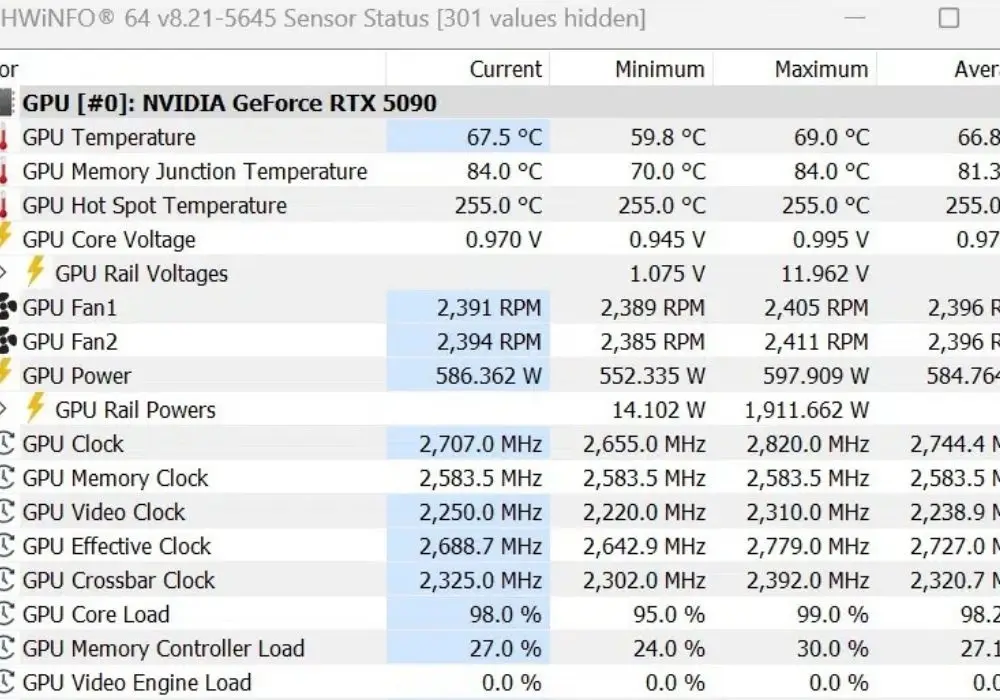
Monitoring tools to use: MSI Afterburner overlay, HWiNFO64 (the most detailed sensor reader for both CPU and GPU in 2026, especially for RDNA 4 cards), and GPU-Z for VRAM temperatures.
Does Overclocking Void Warranty ?
The official position from both manufacturers:
NVIDIA: Any overclocking on their GPUs is done at the user’s risk and may void warranty. However, NVIDIA also publishes OC Scanner in Afterburner and promotes overclocking tools, so the real-world risk is low for software-based overclocking without voltage modification.
AMD: RDNA 4 cards can be tuned via AMD’s own Radeon Software, which AMD provides and supports. Physical damage or extreme voltage modifications beyond what the software allows would be harder to claim under warranty.
Practical reality: Most manufacturers cover hardware failures unless they can prove user modifications caused the damage. As long as you stay within software limits and don’t modify voltage beyond safe ranges, you’re unlikely to face warranty issues. But always check the policy for your specific card’s manufacturer (ASUS, MSI, Gigabyte, Sapphire, etc.) before making a warranty claim.
The Complete 2026 Overclocking Checklist
Before you start:
- Check which GPU you have (RTX 50-series, RX 9000, RTX 40-series, etc.)
- Update to the latest stable WHQL driver (NVIDIA: 595.76 or later | AMD: latest Adrenalin)
- Download MSI Afterburner 4.6.7 from Guru3D.com or MSI.com only
- Download 3DMark (free on Steam) for before/after benchmarks
- Clean your PC, confirm PSU wattage, and seat power connectors firmly
- Run and record a baseline benchmark
The overclocking process:
- Set Power Limit to maximum (+20% for NVIDIA, +10% for AMD RDNA 4)
- Raise Core Clock in +25 MHz steps, testing after each
- Stop at first sign of artifacts or crashes, then back off 25 MHz
- Set a custom fan curve for better thermal management
- Once Core Clock is stable, do the same for Memory Clock
- Stress test with 3DMark looped and Superposition for minimum 60 minutes
- Play your actual games for 1–2 hours to confirm real-world stability
- Save profile in Afterburner and enable auto-start on Windows boot
FAQs
Is overclocking my GPU safe? Can it damage the hardware?
Yes, overclocking is safe when done through software. Modern GPUs have built-in firmware limits that prevent dangerous voltage levels from being applied. Application crashes during overclocking are not hardware damage they’re just the card signaling you’ve gone too far.
The one genuine risk is over-volting pushing voltage beyond safe ranges. As long as you use standard tools like MSI Afterburner or AMD Adrenalin and don’t aggressively modify voltage, your card is protected. Keep GPU core temps below 85°C under load. Above 88°C, reduce your overclock or improve airflow first.
What software should I use to overclock my GPU in 2026?
For NVIDIA cards, use MSI Afterburner 4.6.7 (released February 2026). It fully supports RTX 50-Series Blackwell cards with quad-fan control and GDDR7 memory overclocking up to +3000 MHz offset. For AMD cards, use AMD Radeon Software Adrenalin, which natively supports the RX 9000 RDNA 4 lineup. Advanced AMD users can also use MoreClockTool by Igor’s Lab to bypass the +10% power limit cap that Adrenalin imposes.
Important: only download MSI Afterburner from Guru3D.com or MSI.com many other sites distribute fake versions bundled with malware.
My RTX 50-series overclock stopped working after a driver update what happened?
This is the biggest 2026-specific issue. NVIDIA driver 595.71 applied artificial voltage caps on many RTX 40- and 50-series cards, reducing overclocking headroom by up to 200 MHz overnight. NVIDIA released Hotfix Driver 595.76 on March 5, 2026 to fix this. If you’re still on 595.71, update immediately. Also avoid driver 595.59, which caused fan detection failures and severe in-game performance drops.
If problems persist after updating, use DDU (Display Driver Uninstaller) in Safe Mode to fully wipe the driver before reinstalling a clean copy.
How much FPS gain can I realistically expect from overclocking?
On newer architectures like RTX 50-Series and RX 9000, expect a 5–15% FPS improvement. These GPUs have tighter overclocking margins than older generations an RTX 50-series may gain +50–100 MHz on the core clock, while an older RTX 30-series could manage +150–200 MHz. Older cards like the RTX 30-series or RX 6000 can sometimes see gains up to 20% with the right settings.
Memory overclocking often delivers more visible gains than core clock, especially on bandwidth-sensitive tasks like 4K gaming with ray tracing. A stable, modest overclock always outperforms a maximum, unstable one.
How do I test if my overclock is stable after applying it?
Run at least 30–60 minutes of stress testing after any overclock change. The community-recommended tools are 3DMark Time Spy (free on Steam) for replicating real gaming load, Unigine Superposition (free) for sustained stability testing, and your actual games 1–2 hours at max settings is the most practical test of all.
Signs of a stable overclock: no crashes, no visual artifacts, temps staying under 85°C, and consistent 3DMark scores across runs within 1–2% variance. Screen flickers, pixel corruption, or a Windows “display driver stopped responding” message mean your overclock is too high back off by 25 MHz and retest.
Final Word
GPU overclocking in 2026 delivers real, free performance gains but it works best as part of a balanced system. Before and after overclocking, use our PC Bottleneck Calculator to confirm your CPU and GPU are actually matched, Whether you just picked up an RTX 5080 for 4K gaming, an RX 9070 XT for 1440p, or you’re squeezing more life out of your RTX 4090, the process is the same: go slow, monitor temperatures, test every step, and respect what your specific card can handle.
The overclocking community on Reddit, Tom’s Hardware, Overclock.net, and OC3D remains incredibly active with card-specific guidance. Before you start, search your exact GPU model on those forums you’ll find threads from people with the same card sharing their exact stable settings. That’s invaluable data that no generic guide can replace.
A stable, modest overclock outperforms a maximum, unstable one every single time. Aim for reliability first, and the performance will follow.
