

GPU Fans Not Spinning? Normal or a Problem (and How to Fix It)
Ryan had just finished building his first gaming PC. He pressed the power button, the case lights came on, the CPU cooler spun up, and Windows loaded perfectly. Then he looked through the glass panel and froze. His brand new graphics card’s fans were completely still.
He was sure he had a dead card. He nearly packed it up for a return. Then he launched a game, and a minute later the fans quietly started spinning.
Ryan’s card was not broken. It was doing exactly what it was designed to do. But sometimes GPU fans not spinning really is a warning sign, and running a card without working fans can damage it.
This guide shows you how to tell the difference in under a minute, the fixes to try in order, and when to stop using the card and contact the maker.
How we checked: fan behavior comes from official support pages by ASUS, MSI and AMD. Temperature guidance comes from our own GPU temperature range guide. Exact fan settings differ between card models, so check your own card’s support page too.
Quick answer: if your GPU fans are not spinning at the desktop or during light tasks, it is usually normal. Most modern graphics cards use a zero RPM fan mode that keeps the fans off until the card gets warm. On ASUS RTX 30, 40 and 50 series cards, for example, the fans start once the GPU passes about 55°C or draws more than about 100W. It is only a problem if the fans stay still while gaming and the GPU keeps getting hotter. In that case, check the fan cable and power connectors, update or reinstall the driver, and test with a manual fan speed in MSI Afterburner. If they still do not spin, stop gaming on the card and contact the maker.
Table of Contents
Why GPU Fans Stop Spinning on Purpose: Zero RPM Mode
At the desktop, while browsing or watching videos, a modern graphics card produces very little heat. Its large heatsink can handle that heat without any fans at all. So most graphics card makers switch the fans off completely under light load, making the PC quieter and reducing dust build-up.
Each brand gives this feature its own name:
| Brand | Feature name | How to turn it off |
|---|---|---|
| ASUS | 0dB technology | Turn off 0dB mode in ASUS GPU Tweak |
| MSI | Zero Frozr | MSI Center > Cooling Wizard > turn off “Zero Frozr AI Cooling” |
| AMD Radeon (any brand) | Zero RPM | AMD Software > Performance > Tuning > Manual Tuning > Fan Tuning > Zero RPM |
| Gigabyte | 3D Active Fan | Gigabyte Control Center |
| Sapphire, PowerColor, Zotac, Gainward and others | Fan stop or idle fan stop | The brand’s own tuning app |
When do the fans start?
It depends on the card. ASUS publishes exact figures for its Nvidia cards:
| ASUS card | Fans start when | Fans stop again when |
|---|---|---|
| RTX 40 and RTX 50 series | Above 55°C, or above 100W | Below 50°C and below 50W |
| RTX 3080 and 3090 | Above 55°C, or above 100W | Below 50°C and below 50W |
| RTX 3070 | Above 55°C, or above 100W | Below 50°C and below 40W |
| RTX 3060 Ti | Above 52°C, or above 100W | Below 48°C and below 40W |
Other brands use similar ranges, often somewhere around 50°C to 60°C. So a card sitting at 40°C to 55°C at the desktop with its fans off is behaving normally.
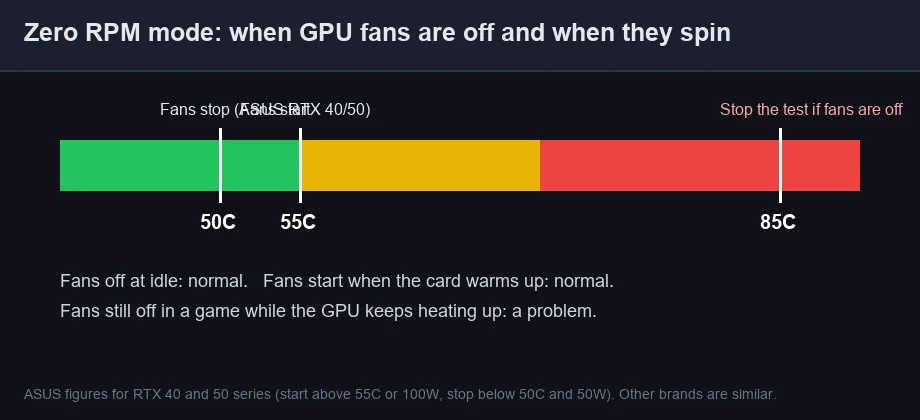
MSI also confirms that on cards with Zero Frozr, fans that stop at idle and start again under higher load are expected behavior.
Normal or a Problem? The 1-Minute Check
Open a free monitoring tool such as HWiNFO64, GPU-Z or MSI Afterburner, then compare what you see with this table.
| What you see | What it means | What to do |
|---|---|---|
| Fans off at the desktop, GPU under about 55°C | Normal. Zero RPM mode | Nothing |
| Fans start once you launch a game | Normal | Nothing |
| Fans spin, stop, spin, stop every few seconds at light load | Usually normal. The card is hovering near its start temperature | Optional: set a custom fan curve (below) |
| Fans off in a game, GPU passing 70°C to 80°C and climbing | Problem | Stop the game and follow the fixes below |
| Fan RPM reads 0 in software even under load | Problem, or a sensor reading issue | Follow the fixes below |
| Fans never spin, not even for a second when the PC first powers on | Possible problem. Many cards spin briefly at startup, but not all | Run a game or stress test to check |
| One fan spins and another does not | Problem with that fan or its cable | Check the fan cable, then contact support |
| Fans spin, but you hear grinding, clicking or rattling | Failing fan bearing | Plan a repair or replacement |
The easiest test: launch a demanding game or a GPU stress test for 2 to 3 minutes while watching the GPU temperature. If the fans start once the card warms up, everything is fine.
How to Fix GPU Fans Not Spinning (Try These in Order)
If your check showed a real problem, work through these fixes from easiest to hardest. Shut down and unplug the PC before touching anything inside it.
1. Test under real load
Run a demanding game or a GPU stress test such as 3DMark or FurMark for a few minutes while watching the temperature. Many “dead fan” reports turn out to be zero RPM mode at a light load. Stop the test straight away if the GPU passes 85°C with the fans still off.
2. Close fan-control apps that fight each other
Running two or more tuning apps at once, for example MSI Afterburner plus ASUS Armoury Crate, Gigabyte Control Center or AMD Software’s tuning, can leave the fans stuck at one setting. Close all but one, and check that none has a saved custom profile with the fan set to 0%.
3. Reset fan settings to default
In MSI Afterburner, press the Reset button. In AMD Software, open Performance > Tuning and choose Reset. Then restart the PC and test again.
4. Update or reinstall the graphics driver
A corrupted driver can stop the card from reporting temperature or controlling its fans. Install the latest driver, or do a clean install with DDU (Display Driver Uninstaller) if problems continue. Our guide on how to update GPU drivers walks you through both.
5. Check the power connectors
Make sure every PCIe power cable going into the card is pushed in fully and clicks into place, including the 12V-2×6 (16-pin) connector on newer Nvidia cards. A loose or half-seated power cable can cause odd behavior, including fans that do not run.
6. Look for obstructions and dust
With the PC off, check that no cable is touching the fan blades and that thick dust is not jamming them. Clean with short bursts of compressed air while gently holding the fans still, because spinning them too fast with air can damage the bearings.
7. Check the fan cable on the card (only if you are comfortable)
On many cards, the fans plug into a small connector on the circuit board under the shroud. A connector that came loose in shipping can stop one or all fans. If your card is under warranty, do not take it apart; contact the maker instead, because opening the card can void the warranty.
8. Test the card in another PC
If you can, try the card in another system. If the fans still do not spin under load there, the problem is the card itself.
How to Set a Custom Fan Curve or Turn Off Zero RPM
If your card is healthy but you prefer the fans always on, or the stop-start cycling annoys you, you can change how the fans behave.
Option 1: turn off zero RPM in your brand’s app
Use the brand app from the table earlier: ASUS GPU Tweak (0dB mode), MSI Center (Zero Frozr AI Cooling), AMD Software (Zero RPM under Fan Tuning), or Gigabyte Control Center.
Option 2: a custom fan curve in MSI Afterburner
MSI Afterburner works with most Nvidia and AMD cards, whatever the brand.
- Open MSI Afterburner and click the Settings (gear) icon.
- Go to the Fan tab.
- Tick Enable user defined software automatic fan control.
- Drag the points on the graph to set fan speed against temperature. Keep a gentle minimum, for example around 30% at lower temperatures, then rise steadily so the fans are well above half speed by the mid 70s°C.
- Click Apply, then make sure Afterburner starts with Windows so the curve stays active.
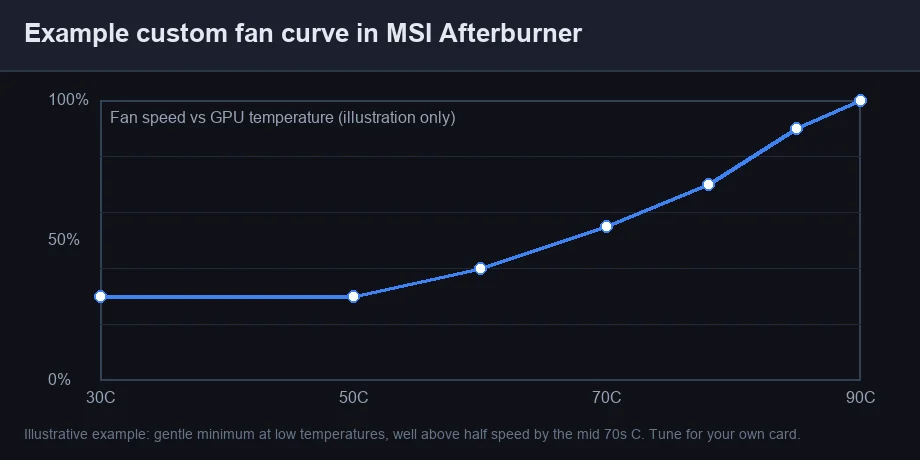
New to the tool? Our MSI Afterburner guide covers setup step by step.
Good to know: keeping fans on at idle makes the card a little cooler and stops the start-stop noise, but adds a little fan noise and wear. Leaving zero RPM on is perfectly safe for a healthy card.
When It Is a Hardware Fault: What to Do
If the fans still do not spin under load after these fixes, or one fan is dead while the others work, the fan or its control circuit has likely failed.
- Stop gaming on the card. Modern GPUs slow themselves down (thermal throttling) and may shut off to protect themselves, but repeatedly running a card that hot is still a risk.
- Check your warranty. Most graphics cards carry a multi-year warranty. Contact the card maker’s support (ASUS, MSI, Gigabyte, Sapphire and so on), describe the steps you tried, and ask about a repair or replacement. MSI’s own support page advises contacting its service center if the fans do not spin at all.
- Out of warranty: replacement fan kits exist for many popular models. Only buy one that lists your exact card model, because fan size, plug type and mounting differ.
- Failing bearings: grinding, clicking or rattling usually means a worn fan bearing. The fan may still spin today, but it is worth planning a replacement.
Not sure if the rest of the card is healthy? See our guide on how to check GPU health.
Safe GPU Temperatures While You Troubleshoot
Watch the GPU temperature whenever you test a card with suspect fans.
- At the desktop with zero RPM active: temperatures in the 40s to around 50°C are normal for most cards.
- During gaming: once the fans are running, most modern cards settle in the 60s and 70s°C.
- Warning zone: if the GPU climbs into the mid 80s°C or higher with the fans still off, stop the test.
Exact safe limits differ between GPU models. Our GPU temperature range guide explains the safe, normal and danger zones in detail, and our thermal throttling guide explains what happens when a GPU gets too hot.
GPU Fans Not Spinning: FAQs
Is it normal for GPU fans not to spin?
Yes, at the desktop and during light tasks. Most modern graphics cards use a zero RPM fan mode that keeps the fans off until the card warms up. On ASUS RTX 30, 40 and 50 series cards, for example, the fans start above about 55°C or 100W.
Why are my GPU fans not spinning while gaming?
If the GPU is getting hot and the fans stay still during a game, something is wrong. Common causes are conflicting fan-control apps, a saved 0% fan profile, a driver problem, a loose power or fan cable, or a failed fan.
At what temperature do GPU fans start spinning?
It depends on the card. ASUS lists about 55°C (52°C for the RTX 3060 Ti) for its Nvidia cards, and many other cards use a similar range of roughly 50°C to 60°C.
Can a GPU work without its fans spinning?
At idle, yes, because zero RPM mode is designed for this. Under gaming load, no. Without working fans, the GPU will overheat, throttle and may shut down.
How do I make my GPU fans spin all the time?
Turn off zero RPM mode in your card’s software (ASUS GPU Tweak, MSI Center, AMD Software or Gigabyte Control Center), or set a custom fan curve with a minimum speed in MSI Afterburner.
Why do my GPU fans spin, stop and spin again?
The card is sitting right around its fan start temperature, so the fans keep switching on and off. It is harmless. A custom fan curve with a low minimum speed stops the cycling.
Do GPU fans spin when the PC turns on?
Many cards spin their fans briefly at power on, then stop at the desktop. Some do not spin at startup at all. Testing under a game load is a more reliable check.
Final Verdict: GPU Fans Not Spinning
Ryan kept his card. Once he understood zero RPM mode, the still fans at the desktop stopped worrying him, and a quick check in MSI Afterburner showed them spinning up as soon as a game warmed the card.
That is the most likely answer for you too. GPU fans not spinning at the desktop is usually normal, because most modern cards switch their fans off until they warm up. It is only a real problem if the fans stay still while the GPU heats up in a game. Then, work through the fixes in order: close conflicting apps, reset fan settings, reinstall the driver, check the power and fan cables, and test the card in another PC. If the fans still will not spin, stop gaming on the card and contact the maker.
While you are checking your PC, run your CPU and graphics card through our free PC bottleneck calculator to make sure the rest of your system is balanced.
