

How Our PC Bottleneck Calculator Works – Get Peak Gaming Results
How our PC Bottleneck Calculator works is actually very simple. It checks your CPU, GPU, and RAM to see how well they work together. The tool looks at the strength of each part and compares them to find out if one component is holding the others back. By comparing the pros and cons of your hardware, and keeping an eye on all the little things that can cause real-time compatibility issues , it tells you in no uncertain terms whether you’re running into CPU ,GPU issues, or if everything is a-okay.
In a matter of no time, it spits out the lowdown so you can boost FPS in your games, make some smart upgrade decisions and maybe even get that one big game to run more smoothly.
Gamers often run into system bottlenecks with their current setups. There could be any reason for this disturbed system performance; a struggling processor, graphic card, low available RAM, a high resolution setting, or the system overheating.
To find which exact element is slowing down the system, gamers use a tool called a bottleneck calculator. There, they input their system specs to detect the slow component.
The problem? Even as a gamer myself, I never found a single tool that inputs all the necessary information to give a truly reliable result. So I have developed my PC bottleneck calculator to fill this gap. Now serious gamers finally have a tool that can give a trusted result, detect the correct bottleneck, and even help them choose the right component when upgrading their system.
Parts of Our PC Bottleneck Calculator
Our comprehensive tool goes beyond simply identifying bottlenecks; it provides a complete solution to remove system bottlenecks and upgrade your hardware.
We have divided this PC performance checker in three main, user-friendly sections: Calculator, Compare, and Find Match.
1. Calculator
- Purpose: Use this section to detect and pinpoint your system’s current bottleneck. This helps you understand exactly which component (CPU, GPU, etc.) is limiting your performance.
2. Find Match
- Purpose: Once you know your bottleneck, choose this section to resolve the issue and balance your system. It helps you find compatible component replacements or additions to eliminate the performance bottleneck.
3. Compare
- Purpose: If you are looking to build a new, balanced gaming PC or upgrade your existing one and are unsure which components work well together, use this section. It helps you compare different CPUs and GPUs (like NVIDIA vs AMD, Intel vs AMD processors) so you can choose a well-matched setup for smooth and optimal performance.
Smart Component Matching for Bottleneck-Free Performance
If you want to upgrade your system after finding a bottleneck, you can use the find optimal component match section. It helps you choose the component that is compatible with your existing CPU or GPU and removes the bottleneck. If you are building a powerful gaming setup, compare different CPU and GPU models first to decide which ones perform best. After choosing your main component, you can use the find optimal component match tool to see which other parts will work well with it.
How Our PC Bottleneck Calculator Works- The Calculator Part
Let’s start by understanding the calculator part comprehensively. This section has the following main components: processor brand, graphic card brand, system RAM, display resolution, game type, background load, cooling setup and show advanced options.
Processor Brand
The first two bars are Intel andAMD processors. Whichever brand of processor your current system has, choose that bar accordingly and directly jump to the processor model tab below the advanced CPU filters. In the processor model, from the drop down menu, select your current model of that respective brand.
Graphic Card Brands
Here you can see three tabs, NVIDIA, AMD and Intel. Select the bar of whichever GPU your system belongs to, and similarly jump to the graphic card model bar and choose your current GPU model.
System RAM
Choose the RAM your current system uses.
Display Resolution
Choose the resolution at which you are playing your game.
Game Type
From here choose your game type, you are playing.
Background Load and Cooling Setup
Choose how much load your system is under, minimal, typical, or heavy.
Show Advanced Option
In this section, we have added four options,
- Choose whether you play with ray tracing on or off, and
- whether DLSS or FSR upscaling is enabled or disabled.
- Select your detail level,
- then choose the FPS you are currently getting.
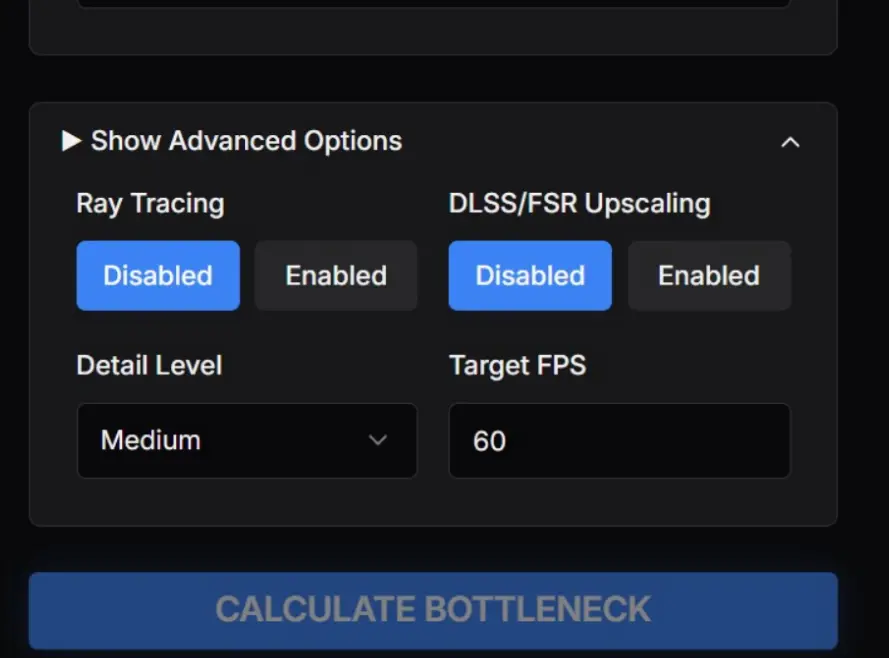
After that, run the bottleneck test by clicking on Calculate Bottleneck.
How to Interpret Bottleneck Analysis Result
Now let’s learn how to interpret your system bottleneck test. Our bottleneck checker divides the bottleneck result into three parts:
- Bottleneck Analysis Result
- Performance Analysis
- Detailed Component Analysis
Bottleneck Analysis Result
Now you can understand easily what is bottlenecking my PC , whether your system is balanced, and how much is its severity and its percentage.
If the bottleneck percentage is less than 10 percent, then it is of low severity, which means your components are almost balanced with each other. By adjusting the other minor factors like increasing the RAM if possible or reducing the resolution, you can improve your system performance.
From 10 percent to 25 percent is the medium bottleneck severity and there must be a bottlenecking component.
From 25 percent onward will be the high percentage that shows high severity bottlenecks which calls for immediate replacement or upgrade of limiting performing components and you may have to consider other factors like increasing your RAM, etc.
Performance Analysis
Here our bottleneck PC calculator shows how much each component CPU and GPU is getting utilized and how much each is sharing the workload. Therefore, you can also call our tool a System Load Calculator as it tells you how much each component is sharing the work.
Note
The bottlenecking component in a computer system is the limiting performing component, the one that is preventing the entire system from achieving a higher speed or frame rate. This is always determined by utilization percentage, not by workload share.
If this point also confuses you, it means you are not clear in understanding the bottlenecking component.
Let’s say your CPU is taking 44 percent of the work and is utilized at 74 percent, while the GPU is handling 56 percent of the work and is utilized at 96 percent. The calculator will still show a GPU bottleneck. This is correct. Ignore the work load share and focus on utilization. The GPU is close to 100 percent and cannot perform more, so it is the limiting component. The CPU still has room to perform, so it is not the bottleneck.
Detailed Component Analysis
Here our tool tells you the detailed description of each of the CPU vs GPU spec, cores, threads, clock speed and its architecture, and it suggests which component you should upgrade to improve your system performance.
How to Use the Compare Component of Our PC Performance Checker
This section is for gaming hardware comparison. By using this section, you can compare the performance of two CPUs or two GPUs so you can pick the one that delivers better results. You can see two options, comparing CPU and GPU. Choose the option which component you want to compare.
For example, if you compare the 15th generation Intel Core i9 15900K with the Intel Core i7 15700K, then our tool will tell the first CPU as the winner because it has more cores, more threads and better overall performance. Similarly, you can compare any two GPUs to know which one has optimal performance in terms of VRAM difference, ray tracing performance and upscaling technology.
If you want to upgrade your system after finding a bottleneck, you can use the find optimal component match section. It helps you choose the component that is compatible with your non limiting CPU or GPU and removes the bottleneck.
If you are building a powerful gaming setup, compare different CPU and GPU models first to decide which ones perform best. After choosing your main component, you can use the find optimal component match tool to see which other parts will work well with it.
3- How Our PC Bottleneck Calculator Works- The Find Match Part
After using the calculator part, if any bottleneck of medium or high severity is detected, then you must upgrade the weak component to the powerful model that is perfectly compatible with the working component. For this, we added a Find Optimal Component Match section in our tool.
If it’s the CPU, your weak component that is detected as a limiting component in the bottleneck test, then jump down to this part and select Find CPU for My GPU. Here select your currently working GPU model and in the below bar, enter the model, and click on Find Optimal CPU.
For example, if you are currently using the Radeon RX 6500XT model of AMD, then our tool will show the
- Intel Core i9 15900K as the Best Match.
- Intel Core Ultra 9 285K as its Alternative.
- Besides these, it will show you AMD Ryzen 9 9950X and Intel Core i9 14900K as two more options.
Similarly, you can choose Find GPU for My CPU if the detected limiting component is GPU. By using this part of our games bottleneck calculator, you can upgrade your current system to a balanced one without wasting your money.
FAQs
What is the function of the Calculator section of your online bottleneck calculator?
You can check your system bottleneck with this section by entering your current setup. If you want to test how a future build would run, just add those specs and options and see how your system handles them. The tool will show if that build will be balanced or if any bottleneck exists, so you can adjust the components to create a balanced rig.
Out of the NVIDIA RTX 5070 Ti and 4090 which one performs better at 4K?
Select the Compare section and click on Compare GPUs. Enter the specs for both GPUs and run the compare test. It will show that both deliver similar performance when considering DLSS vs. FSR technology.
I want to build my system with an AMD Ryzen 9 7950X3D and an NVIDIA GeForce RTX 3060 for playing strategy games at 100 FPS, with 32 GB RAM and a resolution of 1440p, with DLSS/FSR disabled. How would this build perform?
Your selected components will not be compatible with each other. The GPU will grind to its full capacity to meet the specs. You need to change the GPU. Use the Find Optimal Component Match feature: select Find GPU for My CPU, enter your CPU, your targeted resolution (1440p), and targeted FPS (120). Our tool is showing the NVIDIA GeForce RTX 5090 as the best match.
This is how our tool helps you all the way to build a balanced gaming PC without wasting your money.
Final Words
Our tool is not just a simple PC bottleneck finder but it is a complete system that checks whether your setup is balanced or if any component is creating a bottleneck by comparing performance and other key parameters. Moreover, it helps you to find the best component to upgrade your system to remove bottlenecks and improve its performance. You can find the optimal model by comparing the two models side by side.
Give our tool a try and see the difference compared to the basic bottleneck calculators you usually find online.
